Password Log Excel Template: Build a Safe One
Build a password log Excel template that tracks accounts, two-step status and password age without storing passwords. COUNTIF formulas explained.
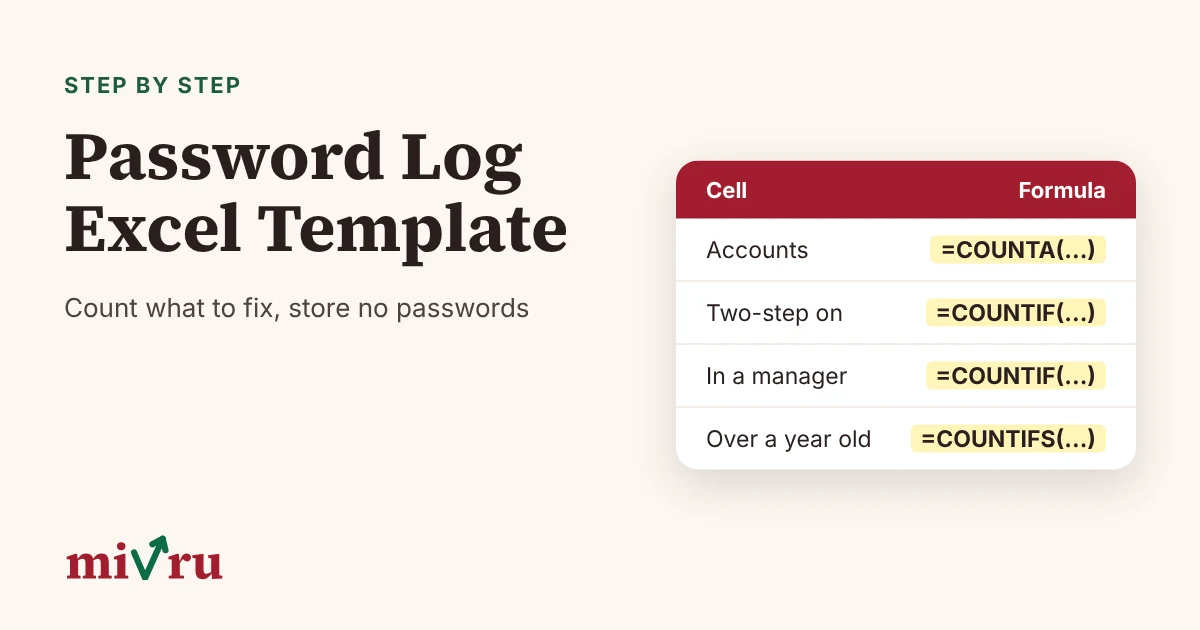
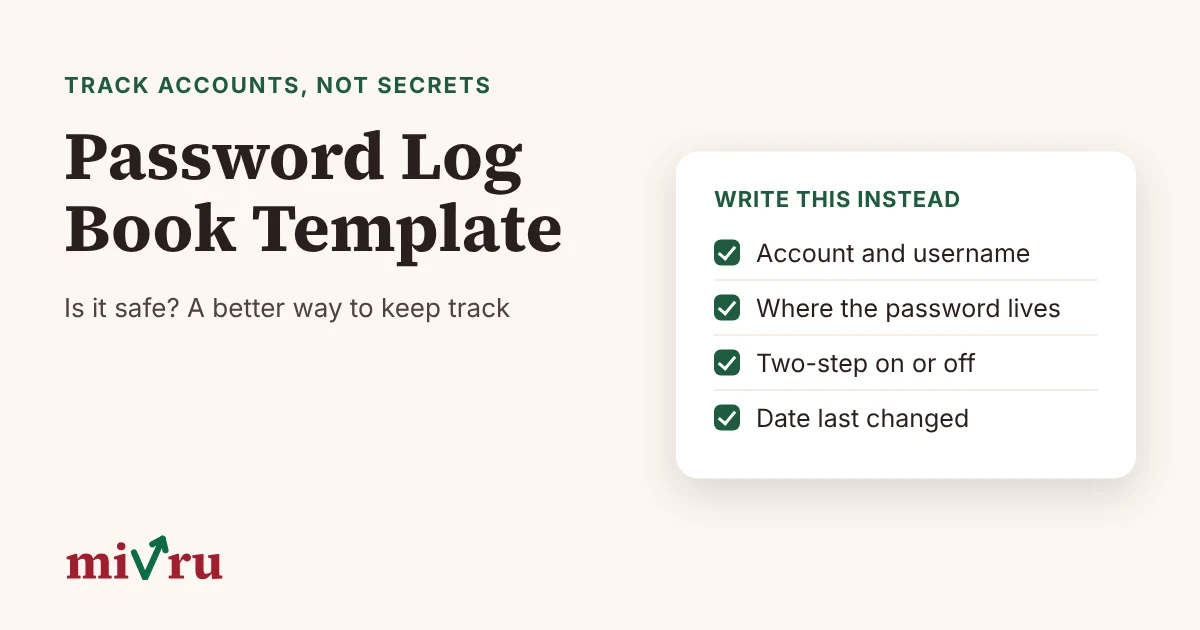
A password log Excel template is only worth building if it does not hold passwords. This guide builds an account log that records where each password is kept, whether two-step sign-in is on and when the password was last changed, then uses a few formulas to show what to fix first. It takes about 40 minutes.
The sample data is made up and comes from our password log example. If you are weighing paper against a spreadsheet, read why a password log book template is risky first.
What you will build
- An Accounts sheet with six columns.
- A Lists sheet with the drop-down choices.
- A Dashboard sheet that counts accounts by status.
Step 1: Lists
Add a sheet named Lists. In A2:A5 type: Password manager, Browser, Memorized, Paper in a safe. In B2:B4 type: Yes, No, Not offered.
Step 2: Accounts
On Accounts type these headings in row 1: Account, Category, Username or email, Password kept in, Two-step on, Last changed, Notes. Add a few made-up rows, for example Main email, Email, [email protected], Password manager, Yes, 8/14/2026.
Do not add a password column. The US Cybersecurity and Infrastructure Security Agency says to use a password manager and a different strong password for every account, so the manager should hold the passwords and your sheet should hold the map.
Step 3: Drop-downs
Select D2:D300, choose Data > Data Validation, set Allow to List and Source to =Lists!$A$2:$A$5. Do the same for E2:E300 with =Lists!$B$2:$B$4. Microsoft explains the steps in its page on applying data validation to cells. Drop-downs matter because the counts below only match exact words.
Step 4: Dashboard counts
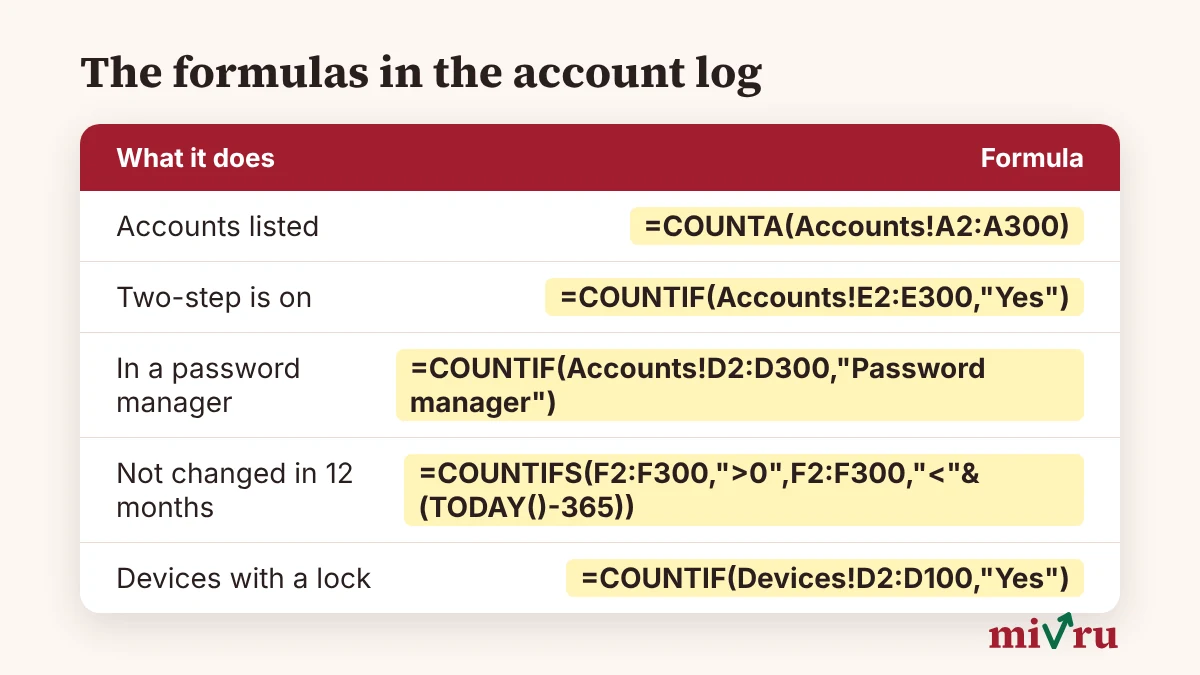
On a sheet named Dashboard, put labels in A and formulas in B:
| Label | Formula |
|---|---|
| Accounts listed | =COUNTA(Accounts!A2:A300) |
| Two-step is on | =COUNTIF(Accounts!E2:E300,"Yes") |
| Two-step is off | =COUNTIF(Accounts!E2:E300,"No") |
| In a password manager | =COUNTIF(Accounts!D2:D300,"Password manager") |
| Not changed in 12 months | =COUNTIFS(Accounts!F2:F300,">0",Accounts!F2:F300,"<"&(TODAY()-365)) |
Microsoft's COUNTIF page explains how criteria work, and the TODAY function returns the current date, so the last row updates itself each day.
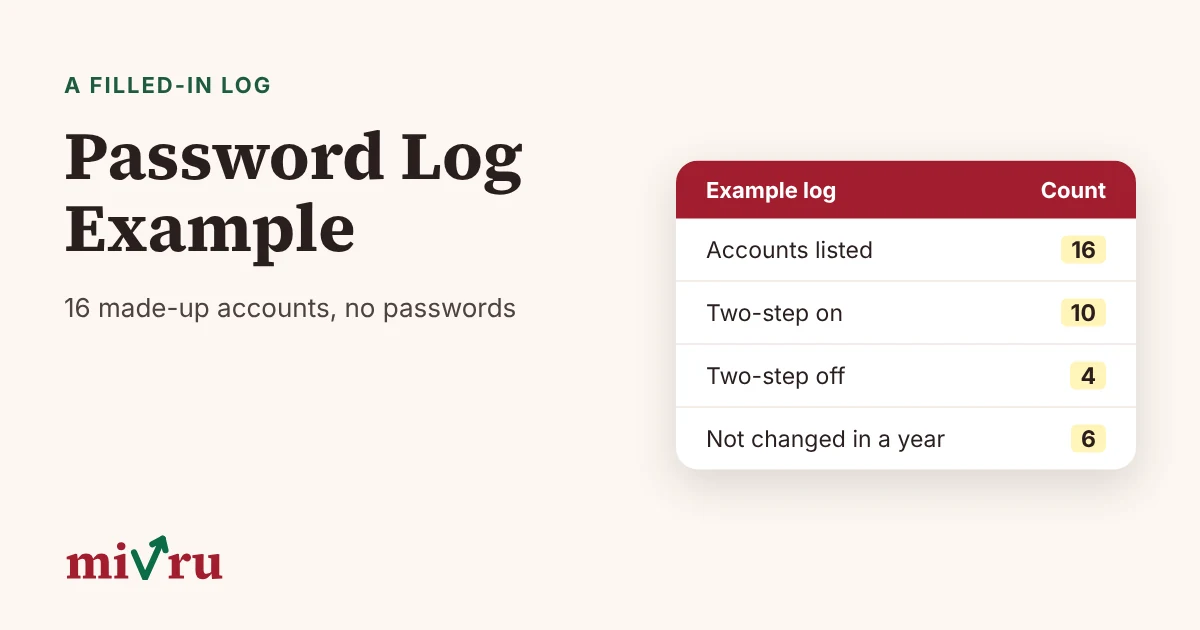
Example: With the made-up data, the dashboard shows 16 accounts, 10 with two-step on, 4 with it off, 10 in a password manager and 6 not changed in 12 months on October 23, 2026.
Step 5: Highlight what needs work
Select E2:E300 and choose Home > Conditional Formatting > New Rule > Use a formula. Enter =E2="No" and pick a red fill. Add a second rule on F2:F300: =AND(ISNUMBER(F2),F2<TODAY()-365) with an orange fill. Microsoft's page on conditional formatting walks through the dialog.
Step 6: Count by category
List the categories in a column and use =COUNTIF(Accounts!$B$2:$B$300,A12) next to each. A bar chart of the result shows where most of your accounts are, which is often shopping and streaming, the accounts that are easiest to forget.
Step 7: Add a Devices sheet
Phones, laptops and routers hold your accounts. On a sheet named Devices, add columns for Device, Whose, Screen lock on and Backup on, with Yes and No drop-downs. Count them the same way: =COUNTIF(Devices!D2:D100,"Yes").
Protecting the file
A workbook with usernames and account names is private information. Keep it in a folder that is not shared, and think about protecting it with a password: File > Info > Protect Workbook > Encrypt with Password. This is an extra layer, not a replacement for a password manager, and if you forget the file password Excel cannot recover it. The Federal Trade Commission says to protect the password manager's master password like your other important passwords and to turn on multi-factor authentication where it is offered.
Related guides
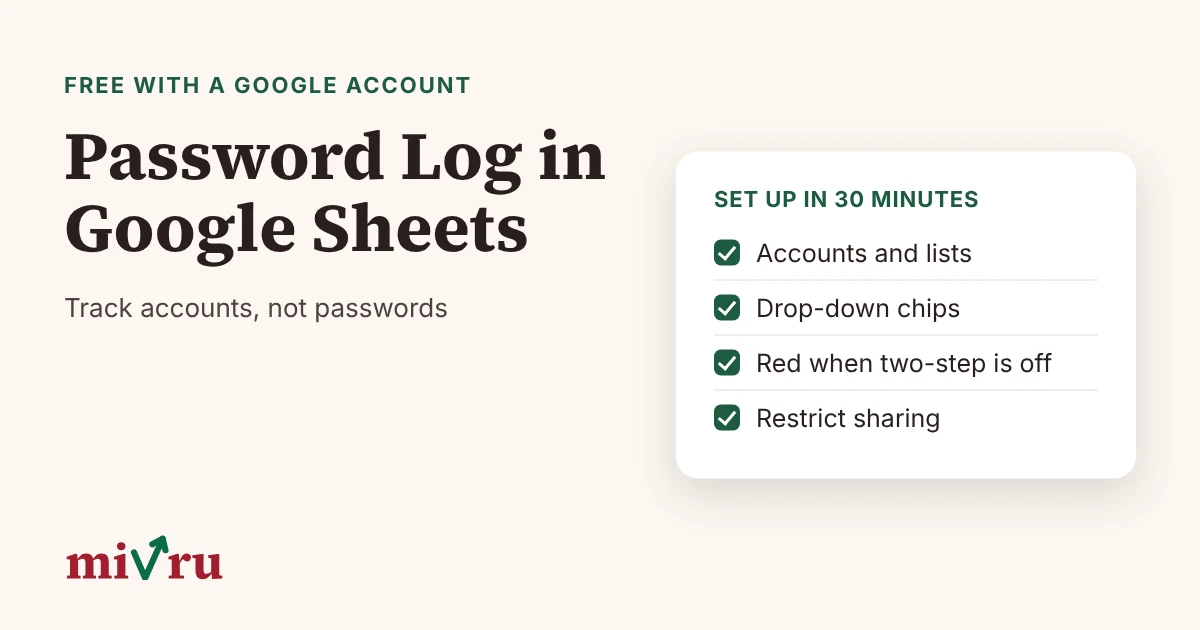
For other household records, see our household binder in Excel guide, and for recurring charges the subscription tracker in Excel. To use Google Sheets, read the password log in Google Sheets. This is general information, not personal security advice.
The dashboard counts
| Count | Value in the made-up example |
|---|---|
| Accounts | 16 |
| Two-step sign-in on | 10 |
| Two-step sign-in off | 4 |
| In a password manager | 10 |
| Not changed in 12 months (on Oct 23, 2026) | 6 |
These counts come from COUNTIF over the status columns and a date comparison for the last-changed column. They tell you what to fix first.
If something does not work
- A count is zero. Check that the words in the sheet match the words in the formula exactly.
- The last-changed check is wrong. Check that the date column holds real dates. Real dates line up to the right.
- A drop-down is missing. Select the cells and check Data > Data Validation.
- The highlight does not appear. Select the range again and check that the rule uses the first row of the range.
Protecting the file
The file holds no passwords, but it still tells someone where your accounts are. Keep it in a private folder, and if you share it, share it only with someone you trust. Use a password on the file if you like, and do not email it as an attachment.
A monthly routine
Once a month, open the dashboard and look at the counts. Work on one account. Over a few months the "off" and "old" counts will fall.
What to do when a count looks bad
A high number in the "off" or "old" counts is not a problem to feel bad about. It is a list of jobs. Pick the account that matters most, fix it today and run the count again. A small improvement each week is enough, and the dashboard shows the progress.
Skip the build
The Mivru Password Log & Account Organizer has all of this ready: Accounts and Devices sheets, drop-downs, a dashboard that counts what to fix, five color themes and an 10-page printable. It never stores passwords. See the Password Log & Account Organizer.
Frequently asked questions
Can I make a password log in Excel?
Yes, but do not store passwords in it. Build an account log that records where each password is kept, whether two-step sign-in is on and when it was last changed, and let COUNTIF formulas show what to fix.
Which formulas do I need?
COUNTA for accounts listed, COUNTIF for two-step status and where passwords are kept, and COUNTIFS with TODAY for accounts not changed in a year.
Should I password-protect the workbook?
It is a sensible extra layer, but a protected file is not a password manager. Keep the passwords themselves in a password manager.
How do I find passwords older than a year in Excel?
Use COUNTIFS on the last changed column with the criteria ">0" and "<"&(TODAY()-365).
Is there a ready-made Excel version?
Yes. The Mivru Password Log & Account Organizer has the sheets, drop-downs and dashboard built in, in five color themes, with an 10-page printable.