Household Binder in Excel: Build One Step by Step
Build a household binder in Excel: contacts, a document list with expiry dates, drop-downs and a COUNTIF dashboard. Formulas explained.
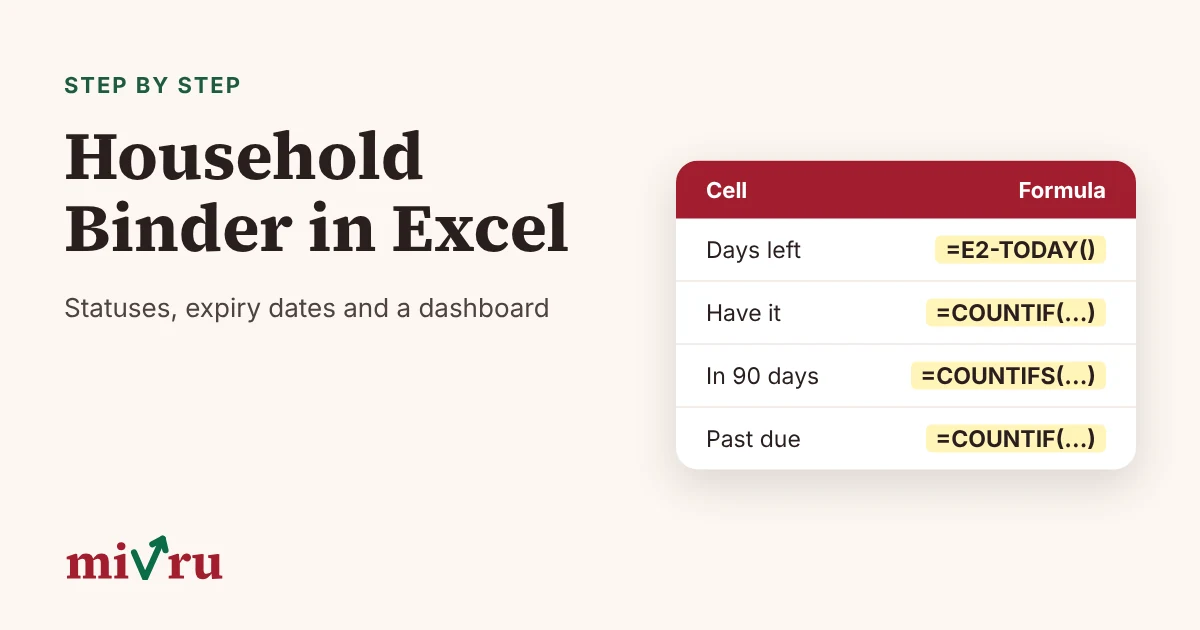
A household binder in Excel takes about 45 minutes to build and does one thing paper cannot: it tells you what is missing and what is about to expire. You list each document with a status and a date, and a few formulas count and sort for you.
This guide builds a small version with three sheets, using the made-up household from our household binder example. If you would rather use paper first, see the household binder printables guide.
What you will build
- A Lists sheet with the drop-down choices.
- A Documents sheet with one row per document: name, type, where it is kept, status and expiry date, plus a "days left" column.
- A Dashboard sheet that counts documents by status and type.
Step 1: The Lists sheet
Add a sheet named Lists. In column A, put the document types (Identity, Insurance, Home, Vehicle, Financial, Medical, Legal, Other). In column B, put the places (Fireproof box, Home safe, File cabinet, Bank safe deposit box, Cloud folder, With my lawyer). In column C, put three statuses: Have it, Need to get, Needs update.
Step 2: The Documents sheet
Add a sheet named Documents. In row 1 type these headings: Document, Type, Kept where, Status, Expires or renews, Days left, Notes. Then add a few made-up rows, for example Vehicle registration, Vehicle, File cabinet, Have it, 11/20/2026.
Step 3: Add drop-downs
Select the Type column (B2:B300). Choose Data > Data Validation, set Allow to List and set Source to =Lists!$A$2:$A$9. Do the same for Kept where (=Lists!$B$2:$B$7) and Status (=Lists!$C$2:$C$4). Microsoft explains the steps on its page about applying data validation to cells.
Drop-downs matter here because the dashboard counts exact words. If one row says "File cabinet" and another says "filing cabinet", the counts will not match.
Step 4: Days left
In F2 type:
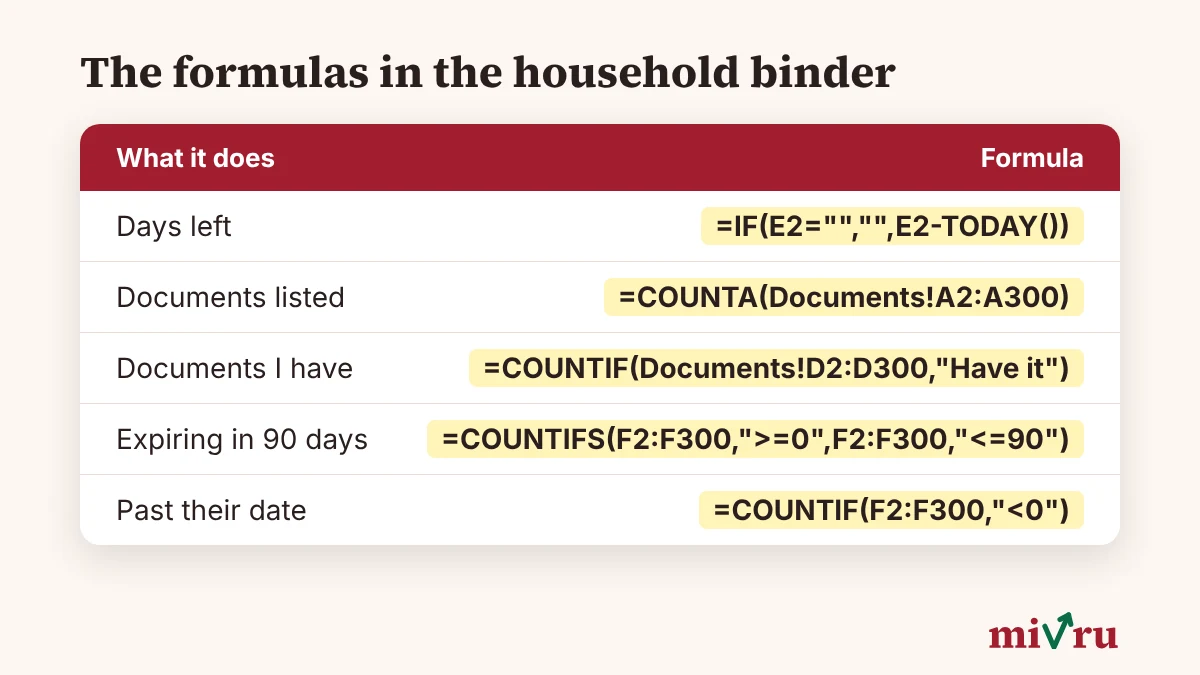
=IF(E2="","",E2-TODAY())
Copy it down. The TODAY function returns the current date, so the cell shows how many days remain, and a negative number means the date has passed. The IF keeps the cell blank when there is no date.
Example: On October 23, 2026, a registration that ends on November 20, 2026 shows 28 days left. A will review set for December 1 shows 39.
Step 5: Color the dates that are close
Select F2:F300 and choose Home > Conditional Formatting > New Rule > Use a formula. Enter:
=AND(ISNUMBER(F2),F2<=30)
Pick an orange fill. Add a second rule, =AND(ISNUMBER(F2),F2<0), with a red fill for dates already past. Microsoft's page on conditional formatting walks through the dialog.
Step 6: The Dashboard
Add a sheet named Dashboard. In A1 type "Documents listed" and in B1:
=COUNTA(Documents!A2:A300)
Below it, add these:
| Label | Formula |
|---|---|
| Documents I have | =COUNTIF(Documents!D2:D300,"Have it") |
| To get or update | =COUNTIF(Documents!D2:D300,"Need to get")+COUNTIF(Documents!D2:D300,"Needs update") |
| Expiring in 90 days | =COUNTIFS(Documents!F2:F300,">=0",Documents!F2:F300,"<=90") |
| Past their date | =COUNTIF(Documents!F2:F300,"<0") |
Microsoft's COUNTIF page explains how the criteria work. For a count by type, list each type in column A and put =COUNTIF(Documents!$B$2:$B$300,A10) next to it.
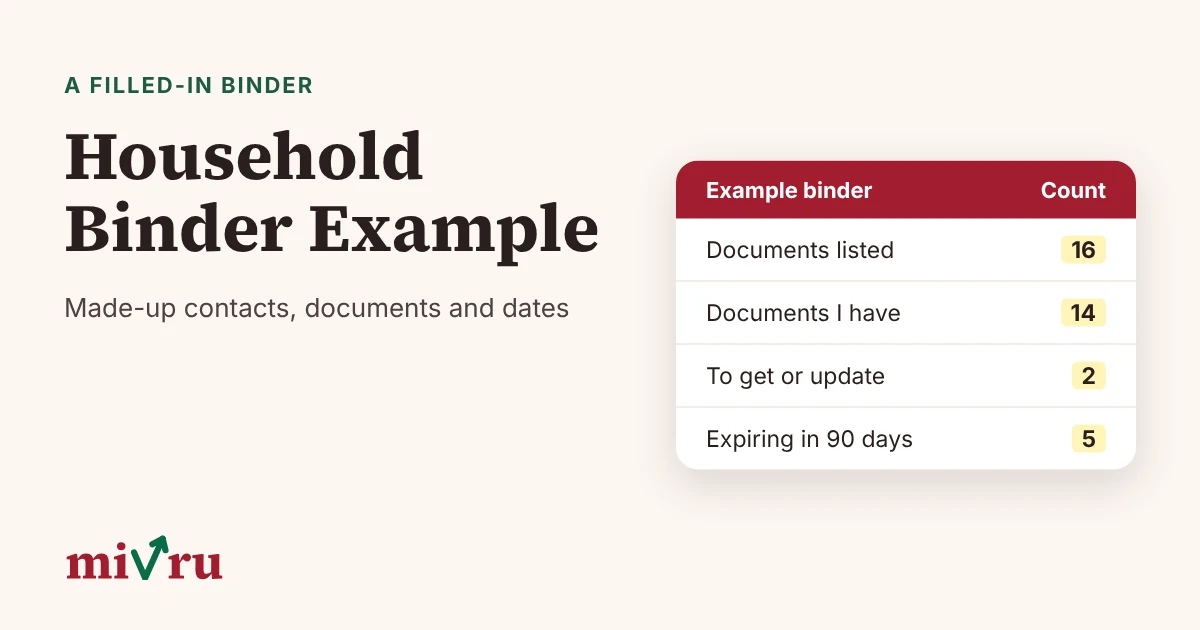
In the example binder these formulas give 16 documents listed, 14 have, 2 to get or update and 5 expiring in 90 days on October 23, 2026.
Step 7: A coming up list (optional)
To list the next dates in order without array formulas, add a hidden helper column H on Documents:
=IF(AND(ISNUMBER(E2),E2>=TODAY()),E2+ROW()/100000,"")
The tiny ROW()/100000 makes every key unique. On the Dashboard, =SMALL(Documents!H2:H300,1) gives the soonest date, and =INDEX(Documents!A2:A300,MATCH(that cell,Documents!H2:H300,0)) gives the document name. Repeat with 2, 3 and 4.
Keep it safe
Do not type full account numbers, passwords or Social Security numbers in the workbook. Ready.gov advises being careful about sharing bank account, Social Security and credit card numbers and suggests keeping important documents where you can reach them in an emergency, such as an external drive or cloud storage. If you add a password to the workbook, remember it, and keep a printed copy of the contacts page in the binder.
Related guides
For the bills in your binder, see the bill tracker in Excel and the subscription tracker in Excel. To use Google instead, read the household binder in Google Sheets. This is general information, not legal advice.
What the status values mean
| Status | Use it when |
|---|---|
| Have it | The document is in the binder, a drawer or a safe place, and it is up to date |
| Need to get | You do not have it yet |
| Needs update | You have it, but it is out of date or about to be |
The dashboard counts each status, so you can see at a glance how much is left to do. A binder with a long "Need to get" list is not a failure. It is a to-do list you can work through one item at a time.
The days-left column in practice
The days-left formula subtracts today's date from the date on the document. In the example, a vehicle registration that ends on November 20, 2026 shows 28 days left on October 23, and a will review set for December 1 shows 39. Color the cells that are 30 days or fewer, so the ones that need action stand out.
If something does not work
- Days left shows a date instead of a number. Format the cell as a number.
- The color rule does not appear. Select the range again and check that the formula refers to the first row.
- The dashboard counts are zero. Check that the status words in the sheet match the words in the formulas exactly.
- A document with no date shows a large number. Wrap the formula in IF to show a blank when there is no date.
A routine for keeping it up to date
Once a month, spend five minutes on the Dashboard. Check what is coming up, update anything you have renewed and add anything new. Once a year, go through the whole list and confirm that each location is still right.
Skip the build
The Mivru Household Binder has all of this set up: contacts, documents, accounts, drop-downs, a dashboard, a coming up list and five color themes, plus an 11-page printable binder. See the Household Binder Printables & Spreadsheet.
Frequently asked questions
Can I make a household binder in Excel?
Yes. A few sheets, a handful of drop-downs and three formulas (COUNTIF, TODAY and a date subtraction) give you a document list that shows what is missing and what is about to expire.
Which formulas do I need?
COUNTIF counts documents by status or type, TODAY gives the current date, and a subtraction of the two gives days left until a date.
How do I make a drop-down list in Excel?
Select the cells, choose Data > Data Validation, set Allow to List and point Source at the cells that hold your list items.
How do I highlight documents that expire soon?
Use conditional formatting with a formula such as =AND(E2<>"",E2-TODAY()<=30) and pick an orange or red fill.
Is there a ready-made Excel household binder?
Yes. The Mivru Household Binder has the sheets, drop-downs, dashboard and a coming up list built in, in five color themes, plus 11 printable pages.