Subscription Tracker Excel: How to Build One (Step by Step)
Build a subscription tracker in Excel that works out cost per month and year, the next renewal date and what is due soon. Every formula explained.
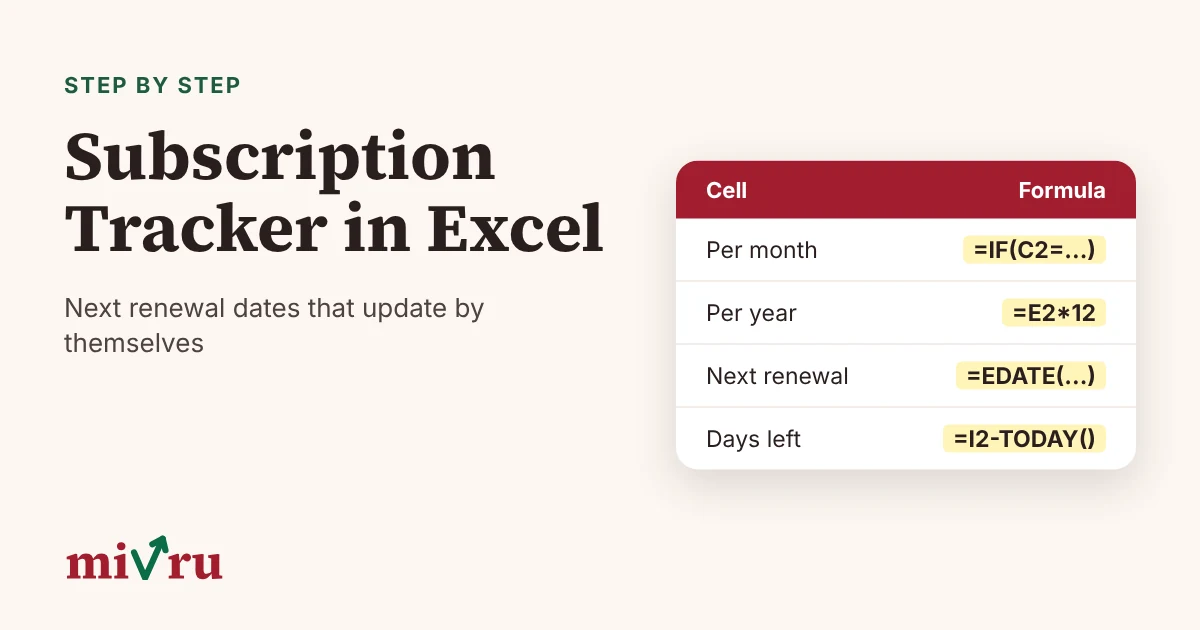
A subscription tracker in Excel takes about 30 minutes to build, and then it keeps itself up to date. You type each subscription once. Excel works out what it costs per month and per year, when it renews next, and which renewals are coming up in the next two weeks.
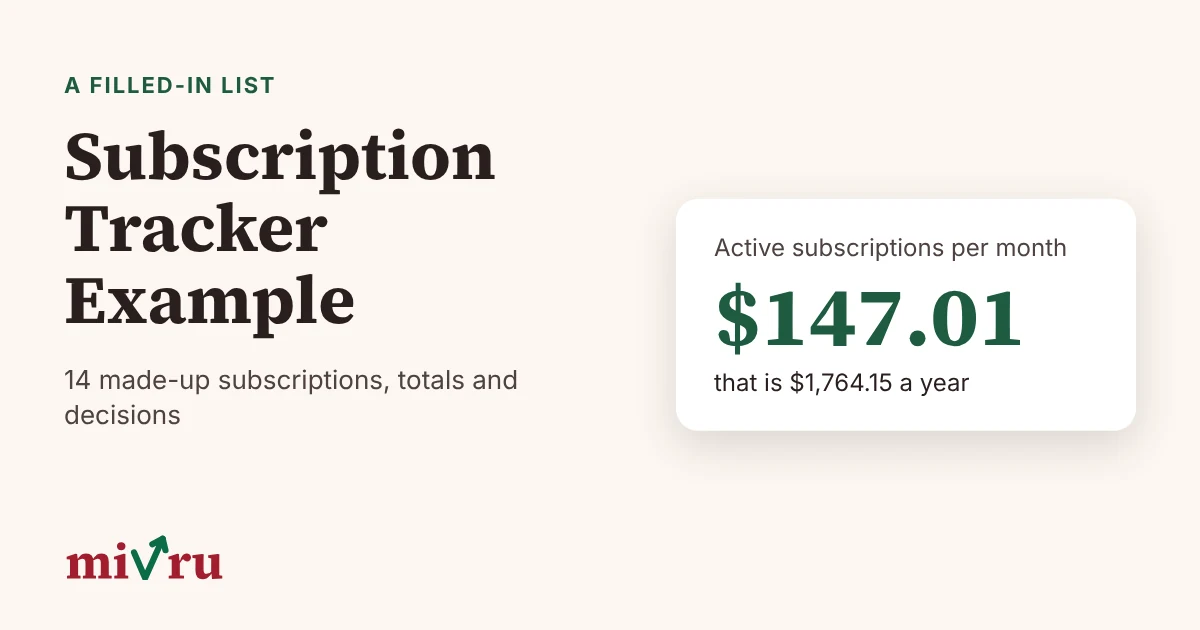
This guide builds one from a blank sheet. It uses the same made-up household as our subscription tracker example, whose 12 active subscriptions cost $147.01 a month.
What the finished tracker looks like
One sheet, one row per subscription. You type in the first five columns. The rest are formulas.
| Column | What goes in it |
|---|---|
| A: Service | The name, like Video streaming |
| B: Cost | The price you pay each time |
| C: Billing | Weekly, Monthly, Quarterly or Yearly |
| D: Started | The date of the first or latest charge |
| E: Per month | Formula |
| F: Per year | Formula |
| G: Months per cycle | Formula (helper) |
| H: Months passed | Formula (helper) |
| I: Next renewal | Formula |
| J: Days left | Formula |
| K: Decision | Keep, Review or Cancel |
Step 1: Set up the headings and your list
In row 1, type the headings from the table. Format column B as Currency and columns D and I as dates. Then type your subscriptions from row 2 down.
Example: Row 2 holds Video streaming, 15.49, Monthly, 11/8/2025. Row 3 holds Antivirus, 59.99, Yearly, 1/18/2026. Row 4 holds Pet treat box, 24.00, Quarterly, 8/25/2026.
Step 2: Add drop-downs for billing and decision
Drop-downs keep the spelling the same, which the formulas need.
- Select C2:C100.
- Go to Data > Data Validation, choose List and type
Weekly,Monthly,Quarterly,Yearlyin the Source box. - Repeat for K2:K100 with
Keep,Review,Cancel.
Microsoft's guide to applying data validation to cells shows each step.
Step 3: Work out the cost per month and per year
In E2, type:
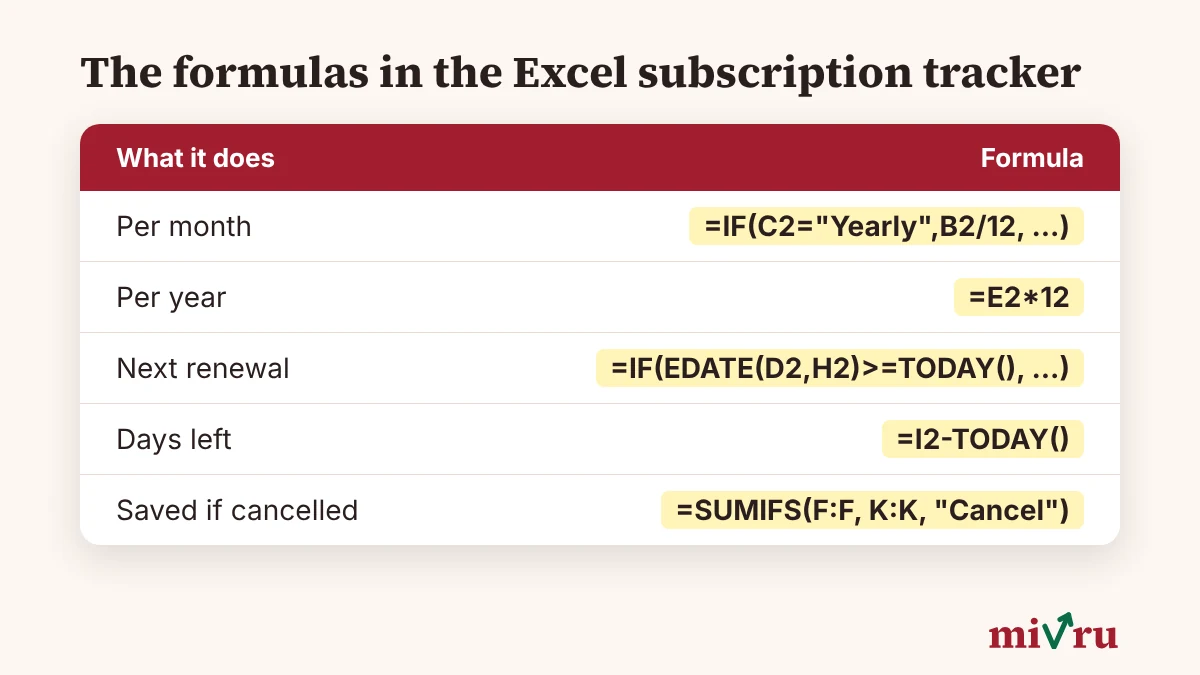
=IF(C2="Yearly",B2/12,IF(C2="Quarterly",B2/3,IF(C2="Weekly",B2*52/12,B2)))
A yearly price is divided by 12, a quarterly price by 3, a weekly price is multiplied by 52 and divided by 12, and a monthly price stays as it is. In F2, type =E2*12. Copy both down.
Example: The antivirus at $59.99 a year shows $5.00 per month and $59.99 per year. The pet treat box at $24.00 a quarter shows $8.00 per month and $96.00 per year.
Step 4: Find the next renewal date
Two helper columns make this easy to read. In G2, the number of months between charges:
=IF(C2="Yearly",12,IF(C2="Quarterly",3,1))
In H2, the number of months that have already passed in full cycles:
=IF(D2>TODAY(),0,INT(DATEDIF(D2,TODAY(),"m")/G2)*G2)
Then, in I2, the next renewal:
=IF(D2>TODAY(),D2,IF(C2="Weekly",D2+7*ROUNDUP((TODAY()-D2)/7,0),IF(EDATE(D2,H2)>=TODAY(),EDATE(D2,H2),EDATE(D2,H2+G2))))
In words: if the start date is still in the future, that is the next date. For weekly subscriptions, count forward in weeks. Otherwise, take the start date plus the months that have passed; if that date is today or later, it is the next renewal, and if not, add one more cycle. Microsoft's help page on the EDATE function explains how it adds months to a date.
In J2, type =I2-TODAY() for the days left, and format the cell as a number.
Example: On October 23, 2026, Video streaming (started 11/8/2025, monthly) shows a next renewal of November 8, 2026 and 16 days left. Antivirus (started 1/18/2026, yearly) shows January 18, 2027.
Step 5: Add the totals
Under the list, type =SUM(E2:E100) for the total per month and =SUM(F2:F100) for the total per year. To add up what cancelling would save in a year, type:
=SUMIFS(F2:F100,K2:K100,"Cancel")
Step 6: Highlight what is due soon
- Select A2:K100.
- Choose Home > Conditional Formatting > New Rule > Use a formula to determine which cells to format.
- Type
=AND($J2>=0,$J2<=14)and choose an orange fill.
Every row that renews in the next 14 days now stands out. Change the 14 to any number you like. Microsoft's conditional formatting overview shows more built-in rules.
Step 7: Keep it up
Add a row whenever you sign up for something, and delete or mark the old ones when you cancel. For free trials, type the date of the first charge as the start date. Each quarter, go through the Decision column and cancel what you marked.
Ideas to make it better
- A Status column (Active, Trial, Paused, Cancelled) so cancelled rows stop counting toward the totals.
- A category column with a drop-down and a SUMIFS total for each category.
- A 12-month forecast that lists what is charged in each month, so yearly renewals are visible early.
- A budget cell and a percent-used formula.
For your fixed monthly payments, see our guide to a bill tracker in Excel, and for everyday spending an expense tracker in Excel.
If something does not work
- The renewal date shows a number. Format the column as a date.
- The next renewal is wrong for a yearly plan. Check that the start date is the date of the last charge, and that the billing cycle says Yearly.
- Cost per month shows an error. An empty billing cycle causes it. Fill it in, or wrap the formula in IF to leave the cell empty.
- The highlight for renewals due soon does not show. Select the range again and check that the rule uses the first row of the range.
A habit that keeps it useful
Add a subscription the day you sign up. Open the sheet once a month, look at the next 14 days and decide about each renewal before it is charged.
Want it ready-made?
Building your own is a good way to learn Excel. If you would rather start today, the Mivru Subscription Tracker has all of this built in: drop-downs, status, decisions, alerts, a dashboard with charts, a 12-month forecast and five color themes. It works in Excel and Google Sheets. See the Subscription Tracker Spreadsheet or print the free Subscription Audit Sheet first.
Frequently asked questions
How do I make a subscription tracker in Excel?
List each subscription with its cost, billing cycle and start date, then add formulas for the cost per month, cost per year and next renewal date. The steps in this guide take about 30 minutes.
Which Excel formula finds the next renewal date?
EDATE adds a number of months to a date. Combined with DATEDIF, which counts the full months since the start date, it finds the next renewal on or after today. The formula is in step 4.
How do I highlight subscriptions that renew soon?
Select the rows, choose Home > Conditional Formatting > New Rule, pick Use a formula and enter a formula such as =AND($J2>=0,$J2<=14). Choose a fill color for rows renewing in the next 14 days.
How do I show weekly and yearly subscriptions as a monthly cost?
Use an IF formula: yearly divides by 12, quarterly divides by 3 and weekly multiplies by 52 and divides by 12. The formula is in step 3.
Will this work in Google Sheets?
Yes. EDATE, DATEDIF, IF and SUM work the same in Google Sheets. Our Google Sheets guide covers the small differences.