How to Create a Bill Tracker in Excel (Step by Step)
Build a monthly bill tracker in Excel with a drop-down Paid column, totals, a left-to-pay number and overdue bills in red. Step by step, every formula.

A bill tracker in Excel takes about 20 minutes to build and saves you from the "did I pay that?" feeling every month. You list each bill once, mark it Paid when you pay it, and Excel tells you the total, what is paid, what is left and which bills are late.
This guide builds one from a blank sheet with five formulas. We will use the same example as in our guide on how to keep track of bills: 11 monthly bills that add up to $2,826.49, tracked for October 2026.
What the finished tracker looks like
The sheet has one row per bill and six columns:
| Column | What goes in it |
|---|---|
| A: Bill | The bill's name, for example Rent |
| B: Due day | The day of the month it is due, for example 1 |
| C: Amount | The usual amount, for example 1450 |
| D: Paid? | A drop-down: choose Yes when you pay it |
| E: Due date | A formula turns the due day into a real date |
| F: Status | A formula shows Paid, Overdue or Due |
Below the bills, three cells show the total, how much is paid and how much is left to pay.
Step 1: Type your bills
In row 1, type the headings: Bill, Due day, Amount, Paid?, Due date, Status. Then type one bill per row, starting in row 2.
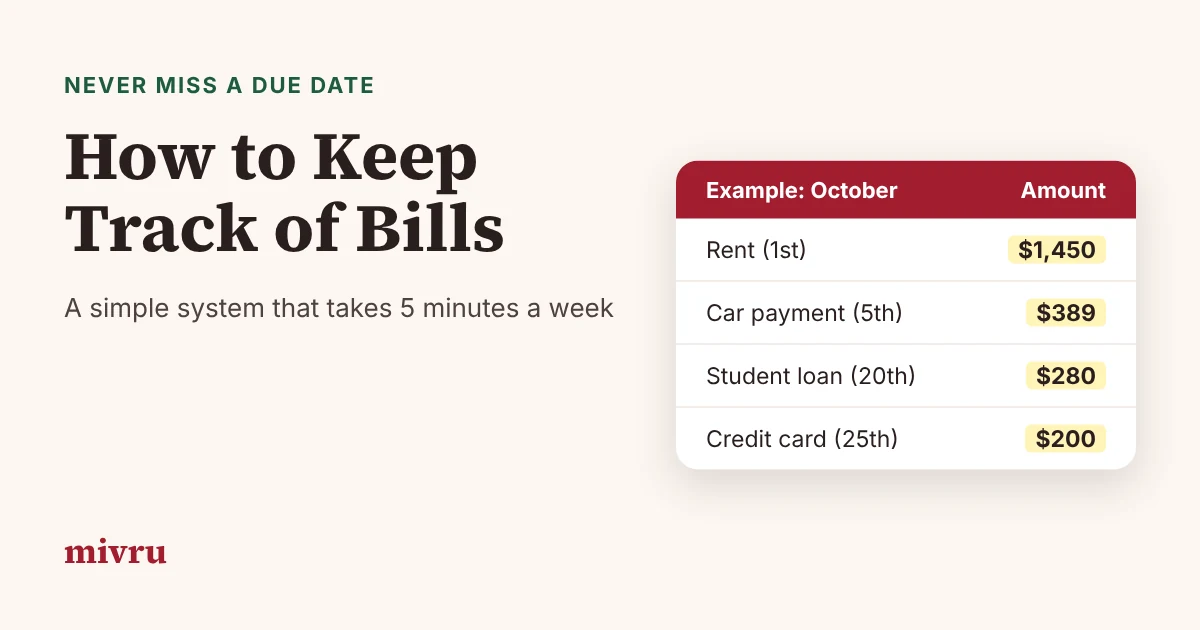
Example: Rows 2 to 12 hold our 11 bills: Rent (due 1, $1,450), Gym (3, $35), Car payment (5, $389), Streaming (8, $15.49), Car insurance (10, $142), Electric (12, $120), Water (15, $45), Internet (18, $65), Student loan (20, $280), Phone (22, $85) and Credit card (25, $200).
Type them in due-date order, so the next bill is always nearest the top. Format column C as Currency so the amounts show with a dollar sign.
Step 2: Add a Paid drop-down
A drop-down keeps the Paid column tidy, so the formulas always find exactly "Yes".
- Select D2:D12.
- Go to Data > Data Validation (Microsoft's guide: apply data validation to cells).
- Under Allow, choose List. In Source, type
Yes. - Select OK.
Now each cell in column D has a small arrow. Choose Yes when you pay the bill, or press Delete to clear it.
Step 3: Turn the due day into a date
In E2, type:
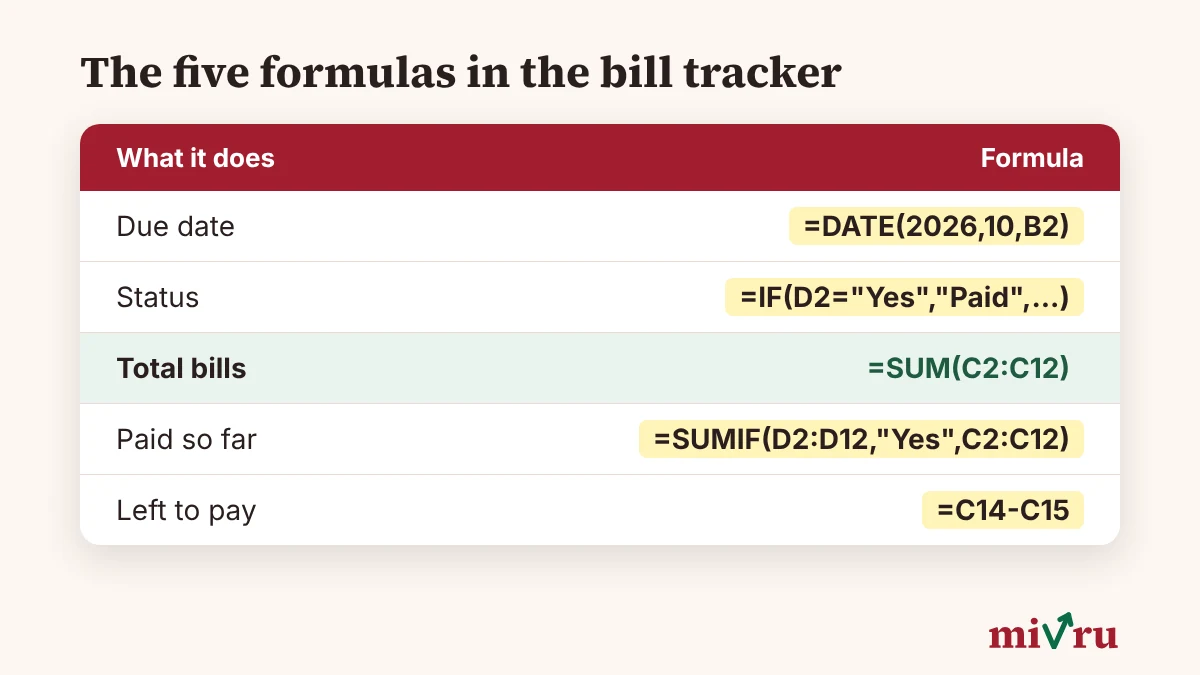
=DATE(2026,10,B2)
This builds a real date from the year (2026), the month (10 for October) and the due day in B2. Copy it down to E12. Format the column as a short date if Excel shows a number.
Step 4: Show the status of each bill
In F2, type:
=IF(D2="Yes","Paid",IF(E2<TODAY(),"Overdue","Due"))
Read it from left to right: if the bill is marked Yes, show Paid. If not, and its due date is before today, show Overdue. Otherwise show Due. Copy it down to F12. Because it uses TODAY(), the status updates by itself every day you open the file.
Step 5: Add the totals
Leave row 13 empty, then add three labels in A14 to A16 and these formulas next to them:
- Total bills in C14:
=SUM(C2:C12) - Paid so far in C15:
=SUMIF(D2:D12,"Yes",C2:C12) - Left to pay in C16:
=C14-C15
SUMIF adds up only the amounts whose Paid cell says Yes. If you later want to add a second condition, such as only bills in one category, Excel's SUMIFS function works the same way with more than one rule.
Example: In late October, every bill is marked Yes except water, phone and the credit card. Total bills shows $2,826.49, Paid so far shows $2,496.49, and Left to pay shows $330.00.
Step 6: Make overdue bills turn red
Color makes the sheet readable in one glance.
- Select F2:F12.
- Go to Home > Conditional Formatting > New Rule.
- Choose Use a formula to determine which cells to format.
- Type
=$F2="Overdue", select Format, choose red text or a light red fill, and select OK.
Add a second rule the same way with =$F2="Paid" and green text, so paid bills fade into the background. Microsoft's conditional formatting overview shows the other built-in rules.
Step 7: Copy the sheet for each month
Right-click the sheet tab, choose Move or Copy, tick Create a copy, and rename the copy for the next month. In the copy, change the month in E2 (for example =DATE(2026,11,B2) for November), copy it down, and clear the Paid column. Twelve tabs give you a full year.
Ideas to make it better
Once the basics work, you can add:
- A Category column (Housing, Utilities, Debt) and a small summary with SUMIFS.
- An Actual column for bills that change, like electric, with a Difference column next to it.
- Yearly bills on their own rows, entered only in the month they are due.
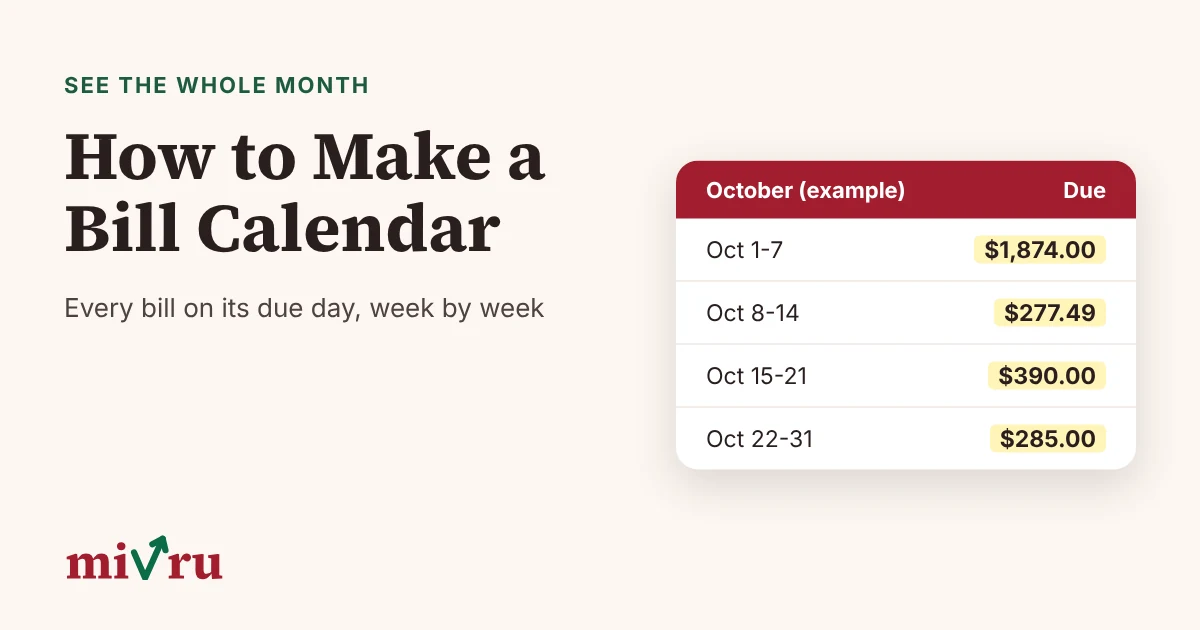
- A bill calendar that shows every bill on its due day. See how to make a bill calendar.
If something does not work
- The due date shows a number such as 46296. Format the column as a short date.
- The Paid drop-down does not appear. Select the cells again and check that Data Validation is set to List with the source
Yes. - Paid so far stays at zero. Check that the cells say exactly Yes with no extra space, and that the amounts in column C are numbers, not text. Numbers stored as text usually line up to the left.
- Totals do not update. Open Formulas > Calculation Options and make sure it is set to Automatic.
- The status says Due for a bill that is already late. The formula compares the due date with today, so check that the due date in column E is the right month and year.
Want it ready-made?
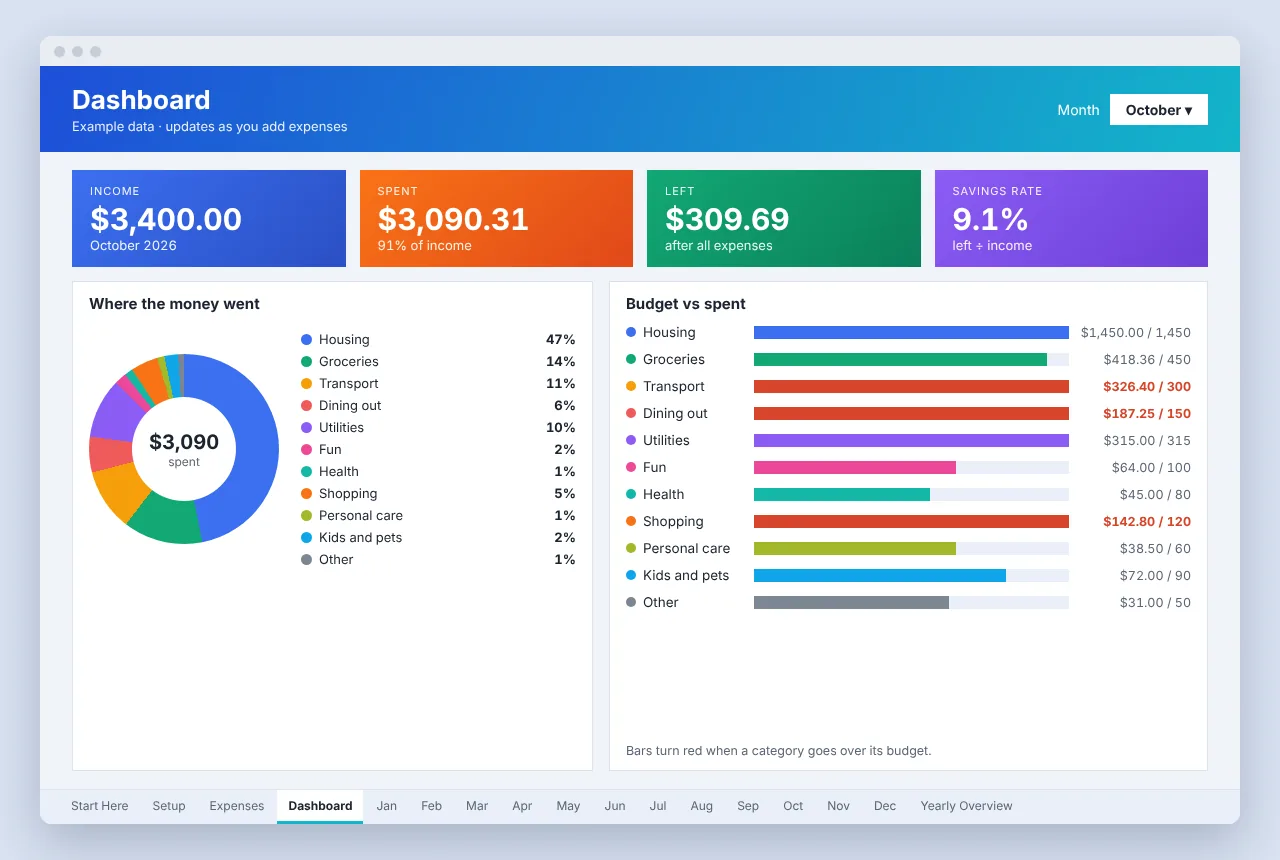
Building your own is a good way to learn Excel. Prefer paper for the weekly check? Print the free Monthly Bill Checklist and keep it next to your laptop. If you would rather start tracking today, the Mivru Bill Tracker already has all of this and more: a Bill List you fill in once, 12 month tabs that fill in by themselves, monthly, quarterly and yearly bills in the right months, a dashboard, a bill calendar and a yearly overview. It works in Excel and Google Sheets. See everything inside the Bill Tracker Spreadsheet.
Frequently asked questions
Does Excel have a bill tracker template?
Excel includes some budget templates, but you can build a simple bill tracker yourself in about 20 minutes with the steps in this guide, or use a ready-made template that already has every formula set up.
How do I mark a bill as paid in Excel?
Add a Paid column with a drop-down list (Data > Data Validation > List) that only allows "Yes". The SUMIF formula then adds up the bills marked Yes, and the status formula shows Paid.
How do I make overdue bills turn red in Excel?
Select the Status column, then use Home > Conditional Formatting > New Rule > "Use a formula to determine which cells to format" with =$F2="Overdue", and choose a red fill or red text.
Will this bill tracker work in Google Sheets too?
Yes. The same formulas work in Google Sheets. You can also replace the Yes drop-down with a checkbox; our Google Sheets guide shows the small changes.
How do I use the tracker for a new month?
Copy the sheet, rename it for the new month, change the month number in the DATE formula and clear the Paid column. Totals and status update by themselves.