How to Make a Bill Tracker in Google Sheets (Free)
Make a free bill tracker in Google Sheets with checkboxes, automatic totals and overdue bills in red. Every formula, step by step, with a worked example.
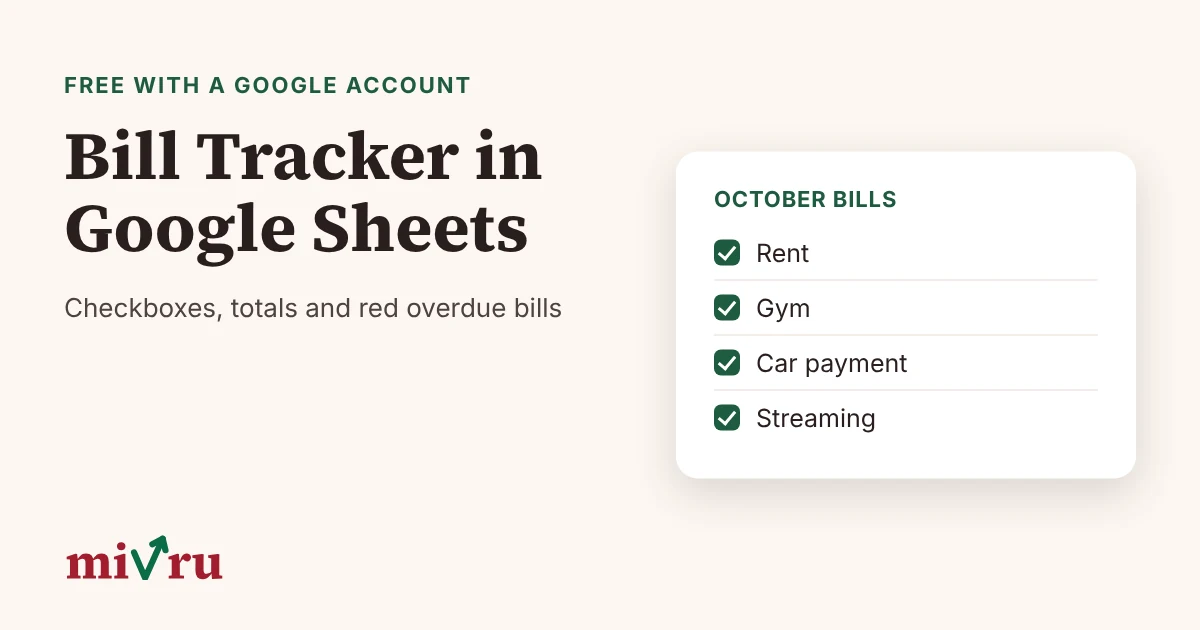
Google Sheets is a good home for a bill tracker: it is free, it saves by itself, and it is on your phone the moment you pay a bill. In this guide you will build one with checkboxes, four formulas and one color rule, starting from a blank sheet.
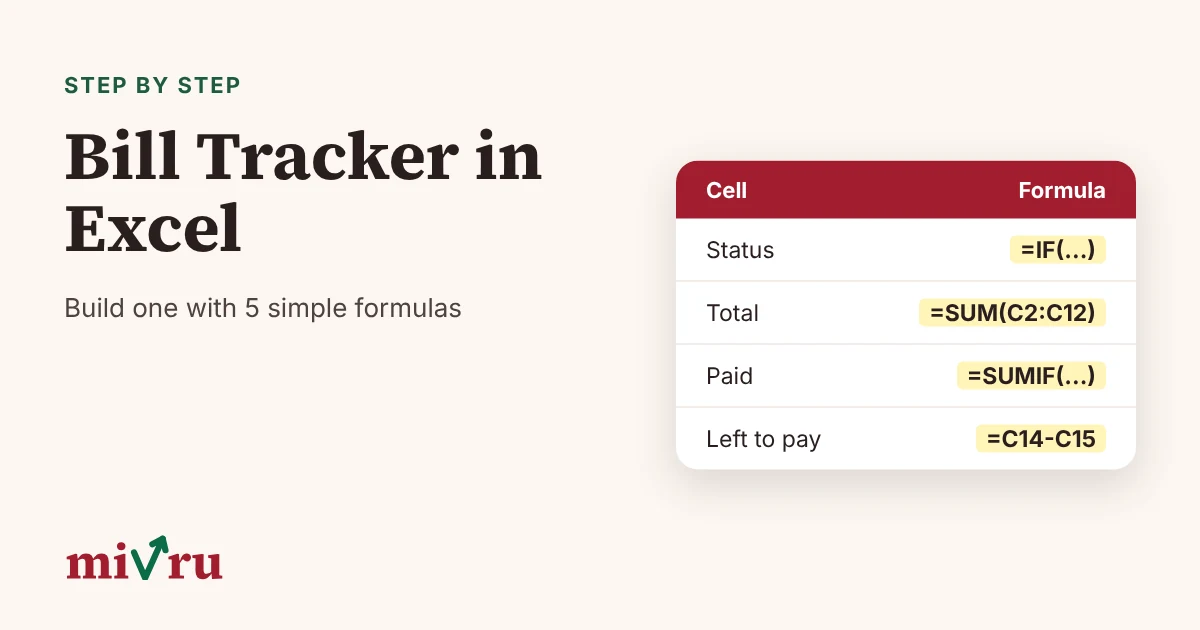
We will use the same example as in our Excel bill tracker guide: 11 monthly bills that add up to $2,826.49, tracked for October 2026. The steps are almost the same; the main difference is that Google Sheets has real checkboxes.
What you will build
One row per bill, with six columns:
| Column | What goes in it |
|---|---|
| A: Bill | The bill's name |
| B: Due day | Day of the month it is due |
| C: Amount | The usual amount |
| D: Paid | A checkbox you tick when you pay |
| E: Due date | A formula builds the date |
| F: Status | A formula shows Paid, Overdue or Due |
Below the bills you will add the total, paid so far, bills paid and left to pay.
Step 1: Create the sheet and type your bills
Go to sheets.google.com, start a blank spreadsheet and name it "Bill Tracker". In row 1, type the six headings. Then add one bill per row from row 2, in due-date order.
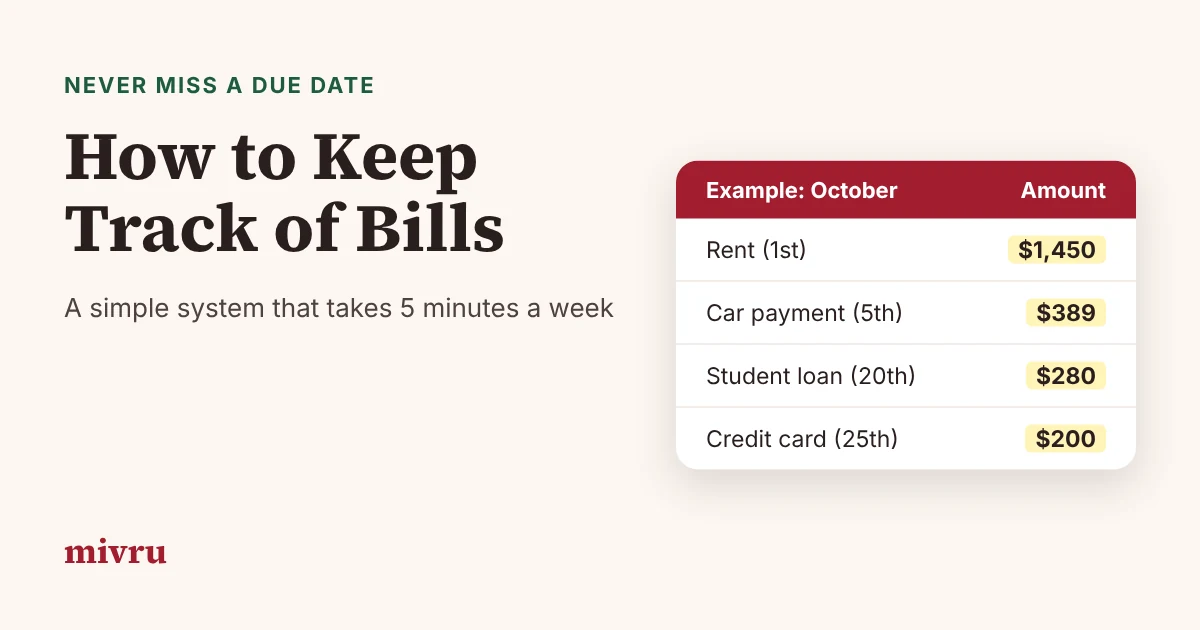
Example: Rows 2 to 12: Rent (due 1, $1,450), Gym (3, $35), Car payment (5, $389), Streaming (8, $15.49), Car insurance (10, $142), Electric (12, $120), Water (15, $45), Internet (18, $65), Student loan (20, $280), Phone (22, $85), Credit card (25, $200).
Select column C and use Format > Number > Currency so the amounts show with a dollar sign.
Step 2: Add checkboxes for Paid
- Select D2:D12.
- Go to Insert > Checkbox.
That is it. Google's help page on adding and using checkboxes also shows how to use your own values, such as Yes and No. For this tracker, the default works best: a ticked box counts as TRUE, an empty one as FALSE.
Step 3: Turn the due day into a date
In E2, type =DATE(2026,10,B2) and copy it down to E12. Google Sheets now shows the real due date for each bill. For a new month, change the 10 to the new month number.
Step 4: Show the status
In F2, type:
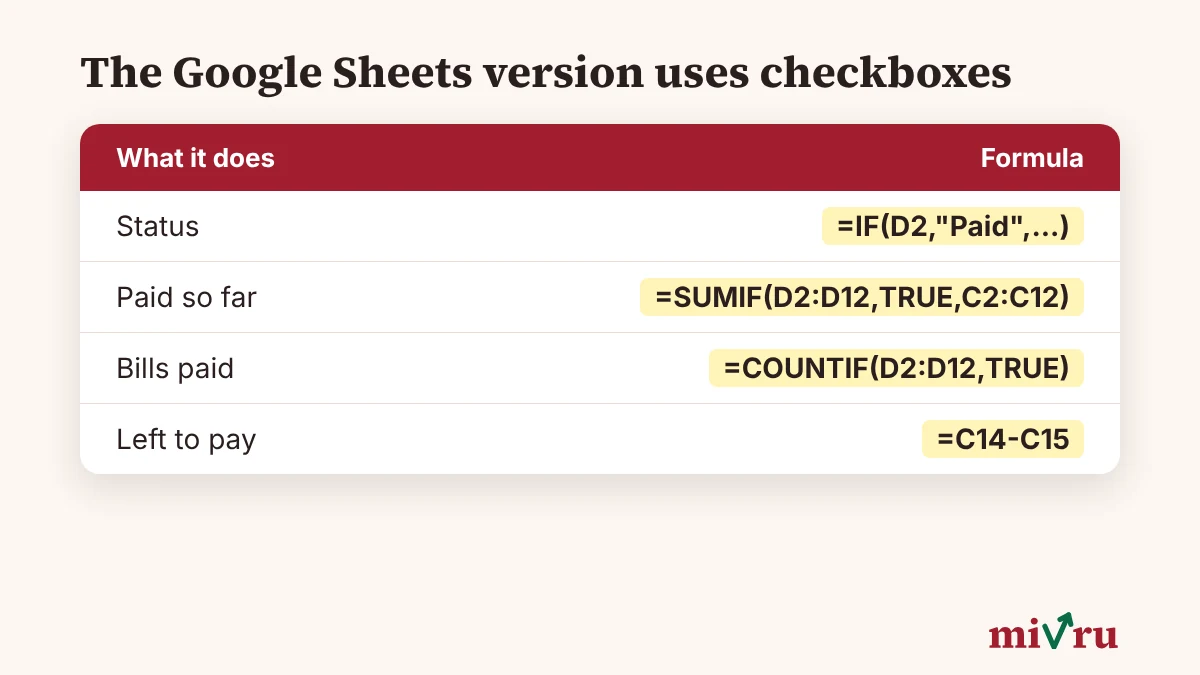
=IF(D2,"Paid",IF(E2<TODAY(),"Overdue","Due"))
Because a ticked checkbox is TRUE, IF(D2, ...) is enough; you do not need D2=TRUE. Copy it down to F12. TODAY() keeps the status current every time you open the sheet.
Step 5: Add the totals
Leave row 13 empty, then add labels in A14 to A17 and these formulas in C14 to C17:
- Total bills:
=SUM(C2:C12) - Paid so far:
=SUMIF(D2:D12,TRUE,C2:C12) - Bills paid:
=COUNTIF(D2:D12,TRUE) - Left to pay:
=C14-C15
The SUMIF formula reads: look at the checkboxes in D2:D12, and add up the amounts in C2:C12 wherever the box is ticked. Google's SUMIF help page explains the three parts.
Example: On October 22, every box is ticked except water, phone and credit card. Total bills: $2,826.49. Paid so far: $2,496.49. Bills paid: 8. Left to pay: $330.00.
Step 6: Make overdue bills red
- Select F2:F12.
- Go to Format > Conditional formatting.
- Under Format cells if, choose Custom formula is and type
=$F2="Overdue". - Pick red text or a light red fill and select Done.
Add a second rule with =$F2="Paid" and green text. Google's guide to conditional formatting rules shows more options, such as coloring the whole row.
Step 7: A tab for every month
Right-click the sheet tab, choose Duplicate, and rename the copy (for example "Nov"). In the copy, change the month in E2, copy it down, and untick the checkboxes. Twelve tabs give you the whole year, and each one keeps its own record of what was paid.
Using it on your phone and with a partner
Install the free Google Sheets app and open the file. You can tick a box right after you pay a bill, wherever you are. If you share bills with someone, use Share to give them edit access: you both see the same list, and nobody pays the same bill twice.
If something does not work
- The checkbox shows TRUE and FALSE text. That is normal. A ticked checkbox is TRUE and an empty one is FALSE, and the formulas use those values.
- The due date shows a number. Format the column as a date from the Format menu.
- The status never changes. Check that the formula refers to the checkbox cell in the same row.
- The red rule colors the wrong rows. Open the conditional formatting rule again and check that the range and the formula start on the same row.
- Your partner cannot edit. Open Share and set their role to Editor.
A few habits that help
Open the sheet on the day each bill is due. Tick the box straight after you pay, while you still have the payment page open. Once a week, scroll to the top and look at what is due in the next seven days.
Skip the setup
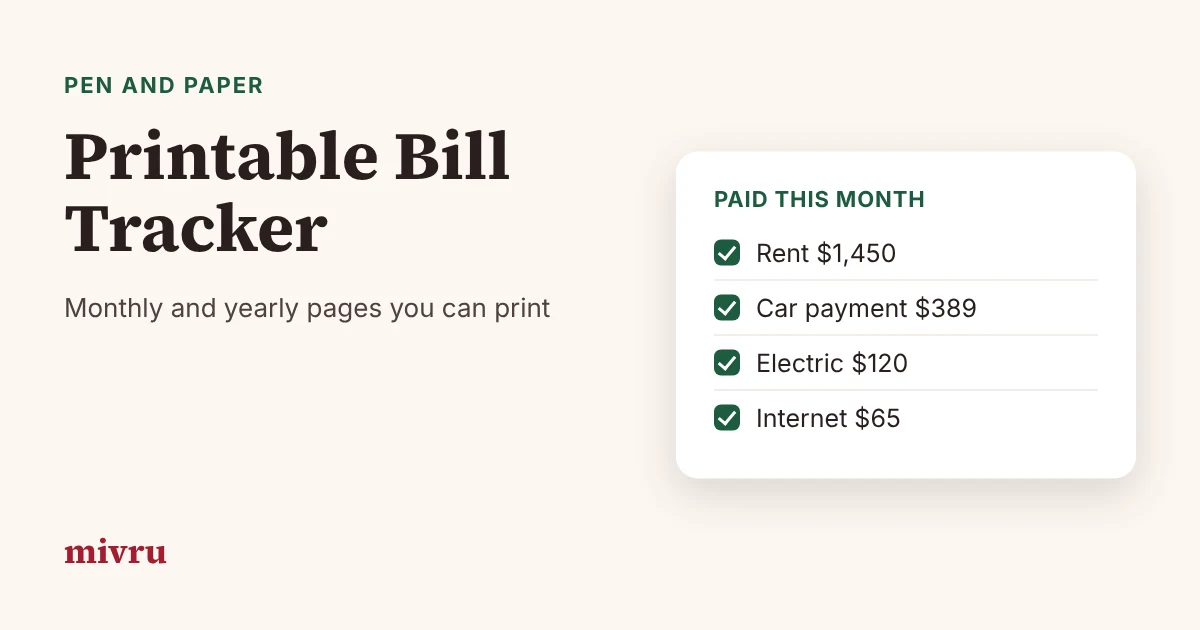
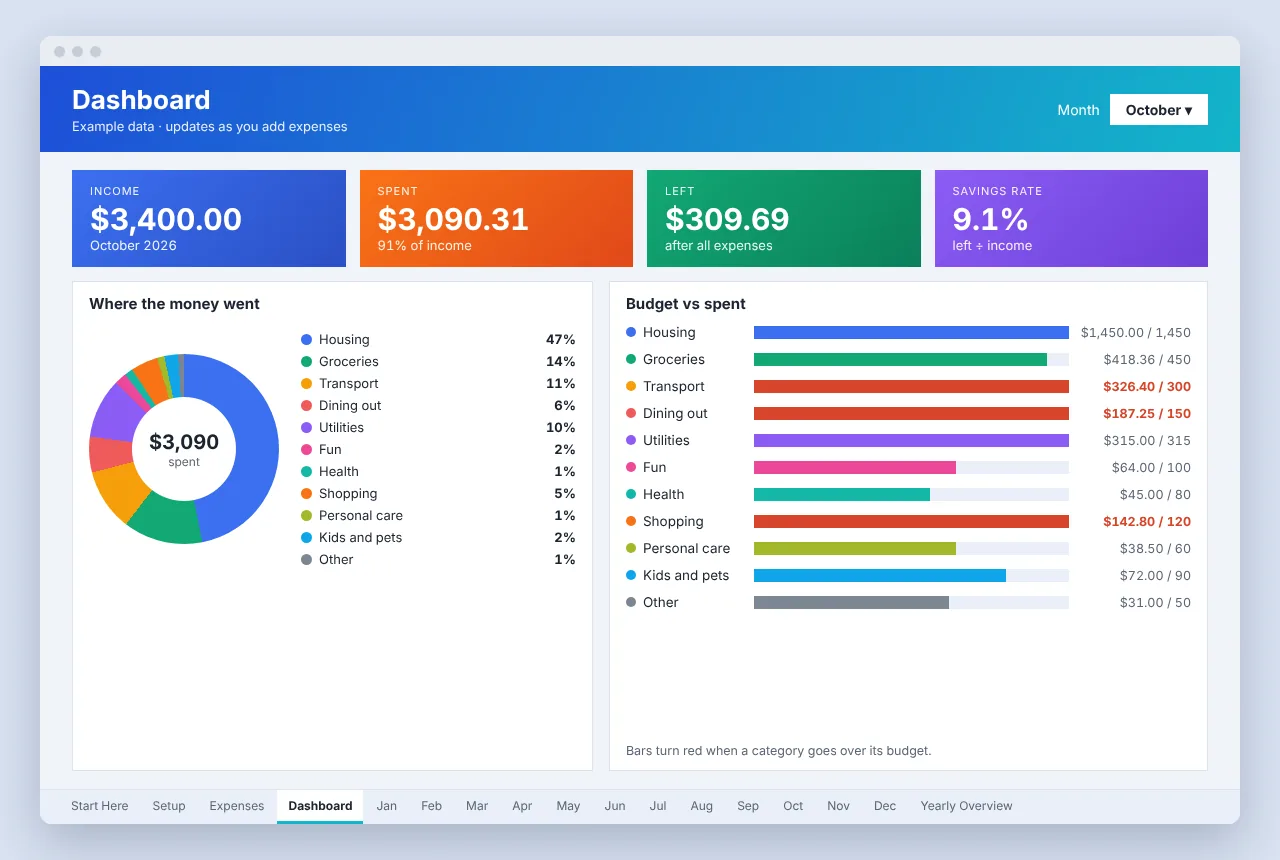
Building your own tracker is a great first spreadsheet project. If you would rather start today, the Mivru Bill Tracker opens in Google Sheets and Excel and already does the extra parts: monthly, quarterly and yearly bills land in the right months automatically, a dashboard shows paid, left to pay and overdue for any month, a bill calendar shows every due day, and a yearly overview adds it all up. There is also a 20-page printable planner. See everything inside the Bill Tracker Spreadsheet, or start on paper with the free Monthly Bill Checklist. For the big picture, see how to keep track of bills.
Frequently asked questions
Is there a free bill tracker in Google Sheets?
Google Sheets is free with a Google account, and you can build a simple bill tracker in it in about 20 minutes with the steps in this guide. Ready-made templates are also available if you would rather not build one.
How do checkboxes work in formulas in Google Sheets?
A ticked checkbox counts as TRUE and an empty one as FALSE. That is why =SUMIF(D2:D12,TRUE,C2:C12) adds up only the paid bills, and =IF(D2,"Paid",...) shows Paid when the box is ticked.
Can I use the Google Sheets bill tracker on my phone?
Yes. Open the file in the free Google Sheets app. You can tick checkboxes and see the totals on your phone, which makes it easy to mark a bill as paid right after you pay it.
Can I share the bill tracker with my partner?
Yes. Use the Share button in Google Sheets and give your partner edit access. Both of you see the same list, and a bill ticked by one person shows as paid for the other.
Can I open an Excel bill tracker in Google Sheets?
Yes. Upload the .xlsx file to Google Drive and open it with Google Sheets. Simple formulas like SUM, SUMIF and IF work the same in both.