Home Inventory Excel Template: Build Your Own
Build a home inventory Excel template: columns, drop-downs, SUMIFS for value by room and COUNTIF for missing photos. Formulas explained, with a printable.
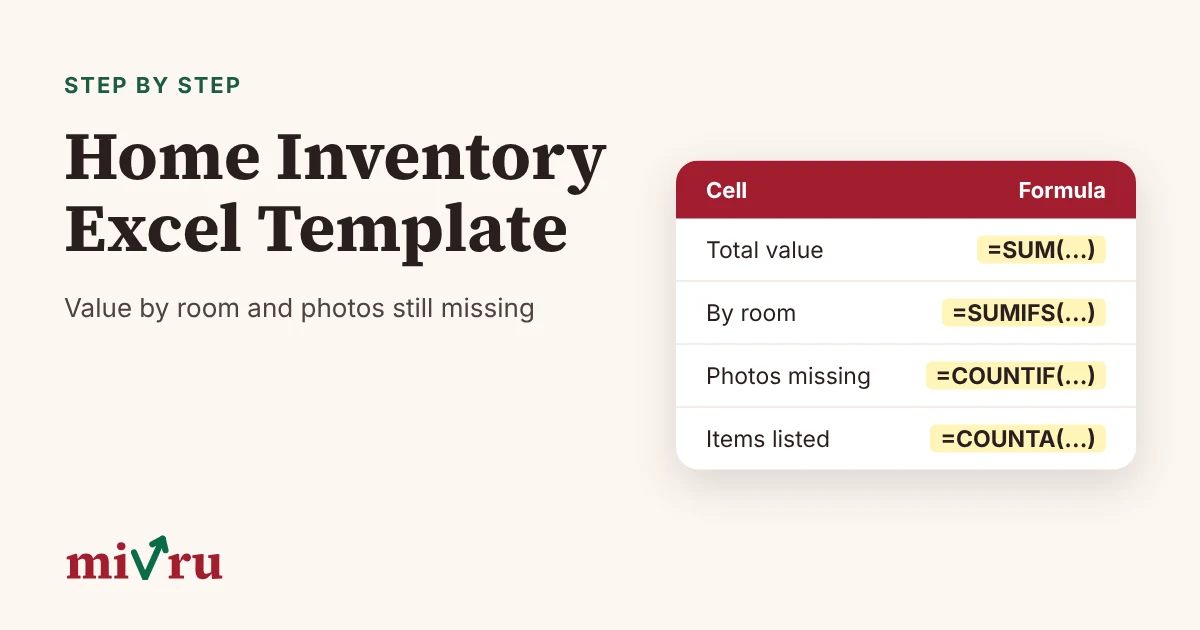
A home inventory Excel template takes about 40 minutes to build and does three useful things: it totals the value of everything you own, shows the value of each room and counts the items you still need to photograph. This guide builds it step by step with made-up items.
The data matches our Excel inventory spreadsheet examples. For what to record, read the home inventory list template guide.
What you will build
- A Lists sheet for rooms, categories and conditions.
- An Inventory sheet with one row per item.
- A Summary sheet with the total, value by room and photo counts.
Step 1: Lists
On Lists, type the rooms in A2:A10 (Living room, Kitchen, Dining room, Bedroom, Bathroom, Home office, Kids' room, Garage and storage, Outdoors). Put the categories in B2:B10 and the conditions (Good, Fair, Needs repair) in C2:C4.
Step 2: The Inventory sheet
On Inventory type these headings in row 1: Item, Room, Category, Brand or model, Bought, Value, Condition, Photo taken, Serial (last 4), Notes. Add made-up rows, for example Television 55 in, Living room, Electronics, BrightView 55, 11/24/2023, 480, Good, Yes, 7721.
Step 3: Drop-downs
Select B2:B700, choose Data > Data Validation, set Allow to List and Source to =Lists!$A$2:$A$10. Do the same for Category (=Lists!$B$2:$B$10) and Condition (=Lists!$C$2:$C$4). For Photo taken, use the list Yes,No. Microsoft explains the dialog on its page about applying data validation to cells. Drop-downs matter because the totals below match exact words.
Step 4: Total value and item count
On Summary enter:
| Label | Formula |
|---|---|
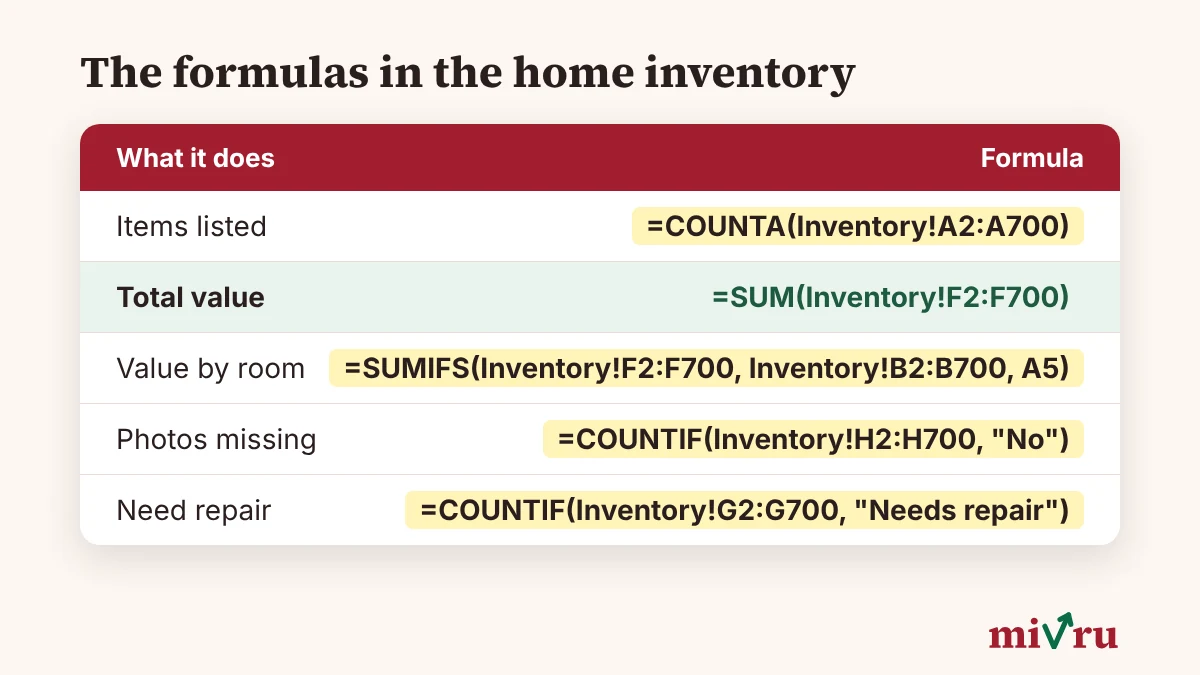
| Items listed | =COUNTA(Inventory!A2:A700) |
| Total value | =SUM(Inventory!F2:F700) |
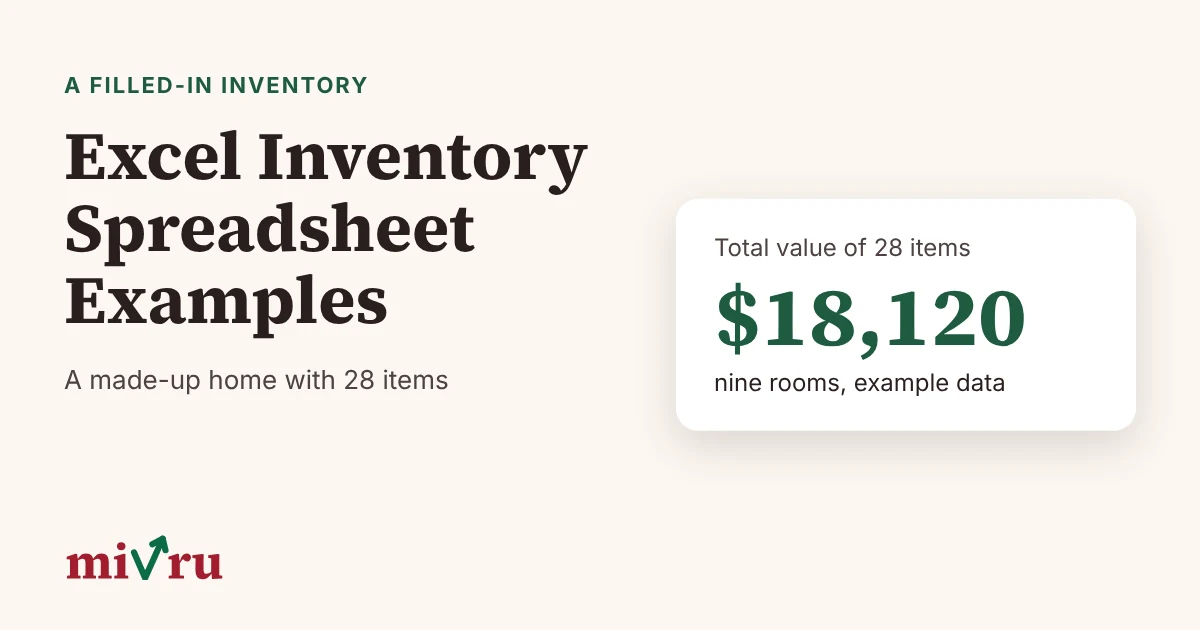
In the example: 28 items and $18,120.
Step 5: Value by room
List the rooms in A5:A13 and in B5 enter:
=SUMIFS(Inventory!$F$2:$F$700,Inventory!$B$2:$B$700,A5)
Copy it down. SUMIFS adds the values where the room matches. The made-up bedroom comes to $5,570 and the living room to $3,070. Select the column and choose Home > Conditional Formatting > Data Bars for a quick bar chart in the cells.
Step 6: Photos and condition
| Label | Formula |
|---|---|
| Photos taken | =COUNTIF(Inventory!H2:H700,"Yes") |
| Photos missing | =COUNTIF(Inventory!H2:H700,"No") |
| Need repair | =COUNTIF(Inventory!G2:G700,"Needs repair") |
| With a serial noted | =COUNTA(Inventory!I2:I700) |
Microsoft's COUNTIF page explains the criteria. In the example: 14 photos taken, 14 missing, 1 needs repair and 10 serials noted.
Example: 14 + 14 = 28, the same as the number of items. If the two numbers do not add up, a row has a blank in the Photo column. Fix it and the check passes.
Step 7: Highlight what needs work
Select H2:H700 and choose Home > Conditional Formatting > New Rule > Use a formula. Enter =H2="No" with an orange fill. Add =G2="Needs repair" on the condition column with red. Microsoft's page on conditional formatting walks through the dialog.
Step 8: Keep photos in folders
Keep the photos and video in a folder named for the date, not inside the workbook, which would make it huge. In the Notes column write the folder name or a short code. Ready.gov's guidance on documenting and insuring your property says to store your inventory away from the home and keep it where you can reach it after a disaster, so keep one copy in cloud storage.
Related guides
For the Google Sheets version, see home inventory spreadsheet Google Docs. For other household records, read the household binder in Excel guide, and for spending the expense tracker in Excel. This is general information, not insurance advice.
What the Summary should show
With the made-up data, the Summary sheet matches these checks.
| Check | Result |
|---|---|
| Items listed | 28 |
| Total value | $18,120 |
| Photos taken | 14 |
| Photos missing | 14 |
| Need repair | 1 |
| Serials noted | 10 |
Value by room, for checking
| Room | Value |
|---|---|
| Bedroom | $5,570 |
| Living room | $3,070 |
| Kitchen | $2,240 |
| Home office | $1,860 |
| Dining room | $1,550 |
| Outdoors | $1,530 |
| Garage and storage | $1,120 |
| Kids' room | $1,090 |
| Bathroom | $90 |
| Total | $18,120 |
The room values add up to the total value: that is a quick test that no row has a blank or misspelled room.
If something does not work
- A room shows zero. The room name in the Inventory sheet does not match the Lists sheet. Use the drop-down.
- The total is lower than expected. A value may be stored as text. Re-enter it as a number.
- The photo counts do not add up to the item count. A Photo taken cell is blank.
- The data bars do not show. Select the room values again and apply the rule.
A yearly routine
Once a year, open the file, add what you bought, remove what you sold and change any value that has moved a lot. Then save a copy with the year in the file name and put one in a place away from home.
Adding a new item
Type the new item on the next empty row of the Inventory sheet, pick the room, category and condition from the drop-downs and enter the value. The Summary formulas read down to row 700, so the new row is included without any change. Take the photo the same day and set Photo taken to Yes.
What to do with the file
Save one copy in a folder on your computer and one in a place away from home, such as a cloud folder. A list that only exists in the house it describes will not help if something happens to the house.
Skip the build
The Mivru Home Inventory Spreadsheet has all of this ready: the Inventory log, drop-downs, a dashboard with value by room and photo checks, five color themes and a 12-page printable. See the Home Inventory Spreadsheet (Room by Room).
Frequently asked questions
Can I make a home inventory in Excel?
Yes. A table with one row per item, drop-downs for room and condition and a few SUMIFS and COUNTIF formulas give you total value, value by room and a count of items still missing a photo.
Which formulas do I need?
SUM for the total value, SUMIFS for value by room, COUNTIF for photo and condition counts and COUNTA for the number of items.
How do I add a drop-down in Excel?
Select the cells, choose Data > Data Validation, set Allow to List and point Source at the cells with your list items.
How many rows do I need?
Most homes list 100 to 400 items if you group small things. Leave room for 700 rows so you can keep adding.
Is there a ready-made version?
Yes. The Mivru Home Inventory Spreadsheet has the sheets, drop-downs and dashboard built in, in five color themes, plus a 12-page printable.