Christmas Budget Spreadsheet: Build One in Google Sheets or Excel
Build a Christmas budget spreadsheet in Google Sheets or Excel in 15 minutes. Copy the SUM, SUMIF and remaining-budget formulas step by step.
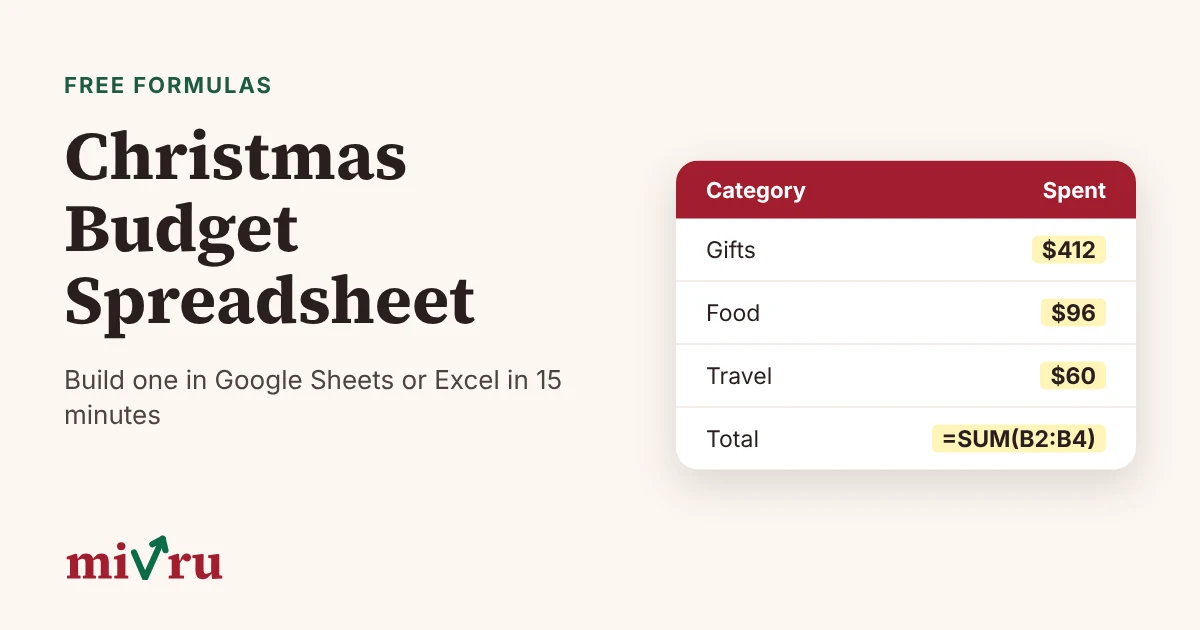
A Christmas budget spreadsheet does one job well: it adds up your spending and tells you how much is left. You can build one yourself in about fifteen minutes in Google Sheets or Excel. The formulas are the same in both, and you only need three of them.
We will use the same example as our Christmas budget guide: a $900 Christmas with $540 for gifts. Everything here works on a blank sheet.
What you will build
- A budget sheet with a budget and "spent" amount for each category.
- A spending log where you write each purchase once.
- A remaining column that updates by itself and warns you if you go over.
Step 1: set up the budget sheet
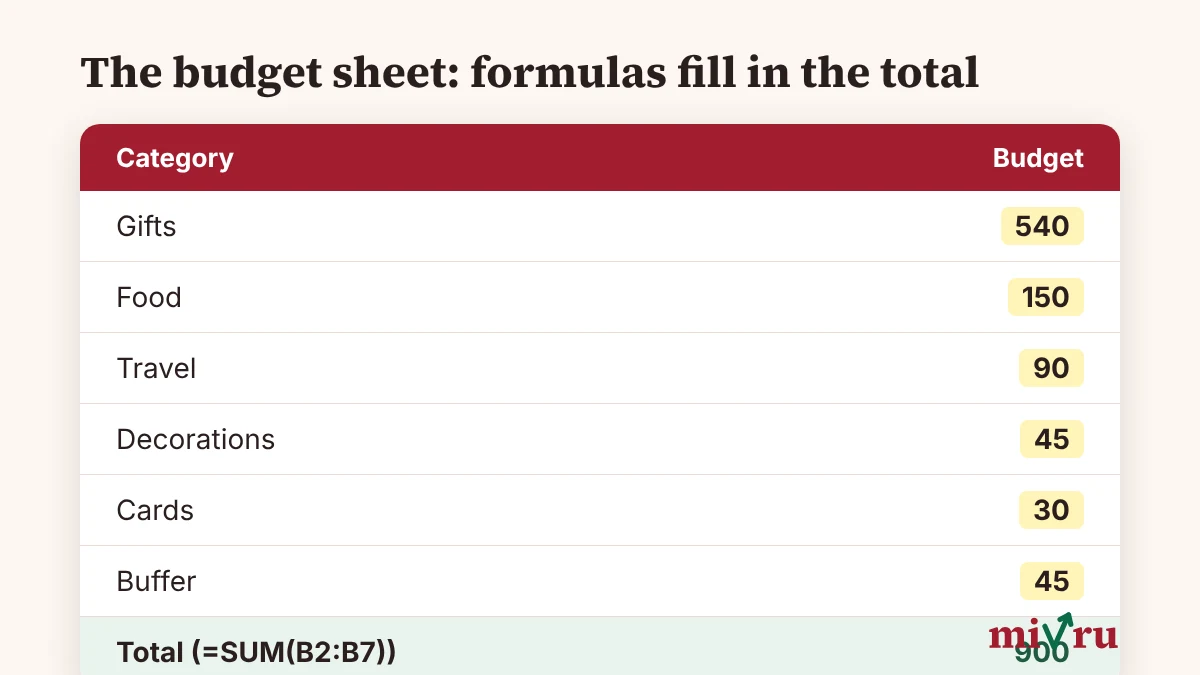
In row 1, type these headings: Category, Budget, Spent, Left, Status. Then fill in your categories from row 2. Using the example numbers:
| Category | Budget |
|---|---|
| Gifts | 540 |
| Food | 150 |
| Travel | 90 |
| Decorations | 45 |
| Cards | 30 |
| Buffer | 45 |
Put the total in the Budget column under the last row with a SUM formula:
=SUM(B2:B7)
It should show 900. That is your total Christmas budget, and it will change if you change any line.
Step 2: add a spending log
Open a second sheet and call it Log. Use three columns: Category, Amount, Note. Each time you buy something, add a row. For example:
- Gifts, 24.99, Lego for Sam
- Food, 61.40, Dinner shop
- Cards, 12.00, Boxed cards
The category name must match the budget sheet exactly. A typo like "Gift" instead of "Gifts" means the amount will not be counted.
Step 3: use SUMIF to total each category
On the budget sheet, in the Spent column for Gifts, type:
=SUMIF(Log!A:A,A2,Log!B:B)
This adds every amount in the Log's column B where column A matches the category name in cell A2. Copy the formula down for the other categories. In plain words: "find every purchase marked Gifts and add them up."
Both Google's SUMIF help page and Microsoft's SUMIF page explain the function in more detail. Both describe the same rule: it adds the values in a range that meet one condition.
Step 4: show what is left
In the Left column, subtract Spent from Budget:
=B2-C2
In the Status column, add a warning:
=IF(D2<0,"Over budget","OK")
If you spend more than a category's budget, the cell says "Over budget" instead of "OK". Colour that cell red for a faster warning: select the column, open the formatting rules and choose "if text is exactly Over budget".
For the totals row, copy the SUM formula across: =SUM(C2:C7) for Spent and =SUM(D2:D7) for Left.
Step 5: add a gift sheet
On a third sheet, list every person with a budget, a gift idea and a "paid" amount. A few columns are enough:
- Name
- Budget (for the example, the total of this column should match $540)
- Idea
- Price paid
- Difference:
=B2-D2
Use =SUM(B2:B30) at the bottom to check the budget column equals your gift budget. Our guide on how much to spend on gifts explains how to share the number between people.
Common mistakes
- Typing totals by hand. Always use SUM so the number updates when a line changes.
- Different category names in the log and budget sheets. Use a drop-down list (Data validation in both programs) to avoid typos.
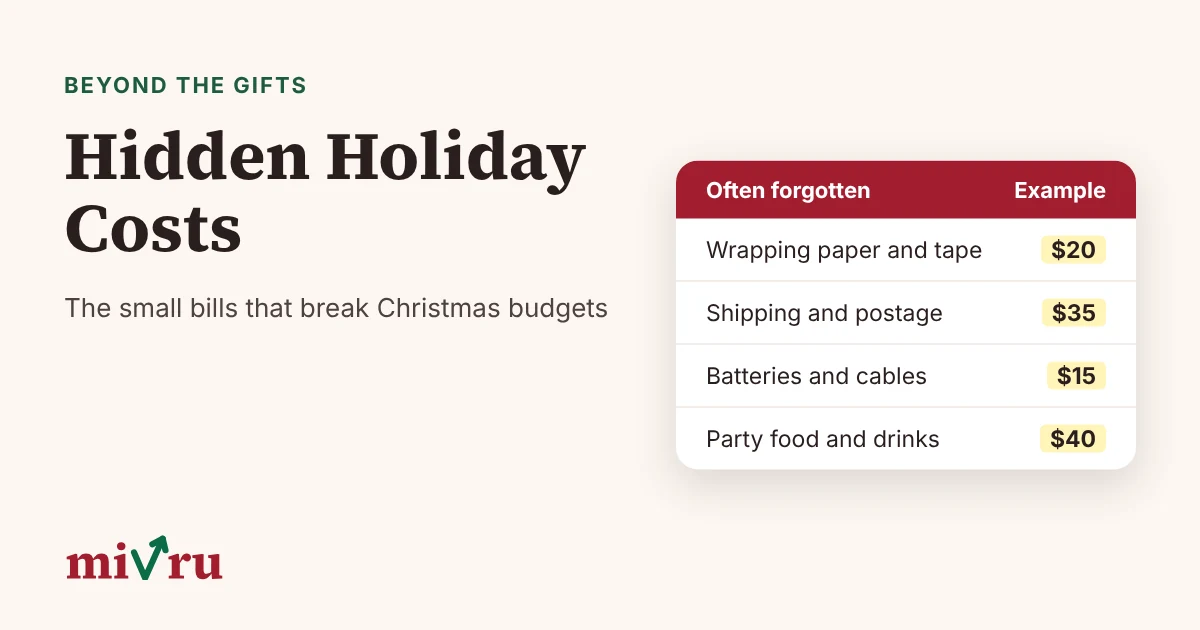
- Forgetting the extras. Wrapping, postage and batteries need a line too. See hidden holiday costs.
- Not saving a copy. Make a copy every year so you can compare plan and reality.
When to use a ready-made one
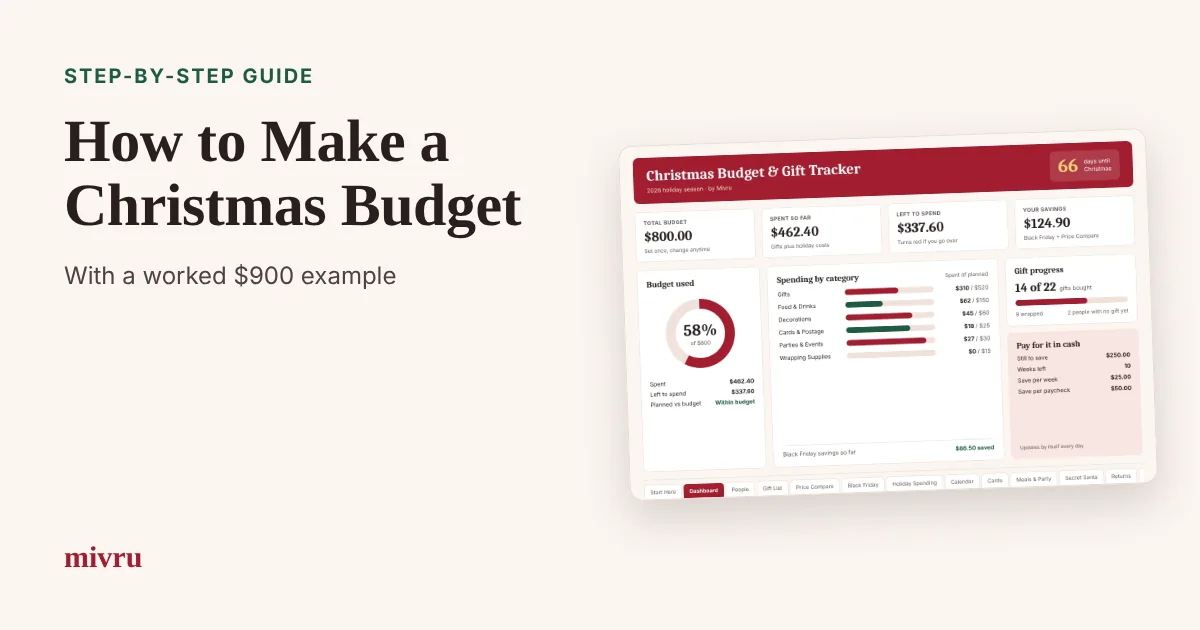
Building your own is a good way to learn, and it costs nothing. But if you would rather skip the setup, our Christmas Budget & Gift Tracker is already built. It has the budget, gift list, Black Friday planner, price compare and savings plan, with formulas that update on their own, and a 22-page printable planner for people who like paper.
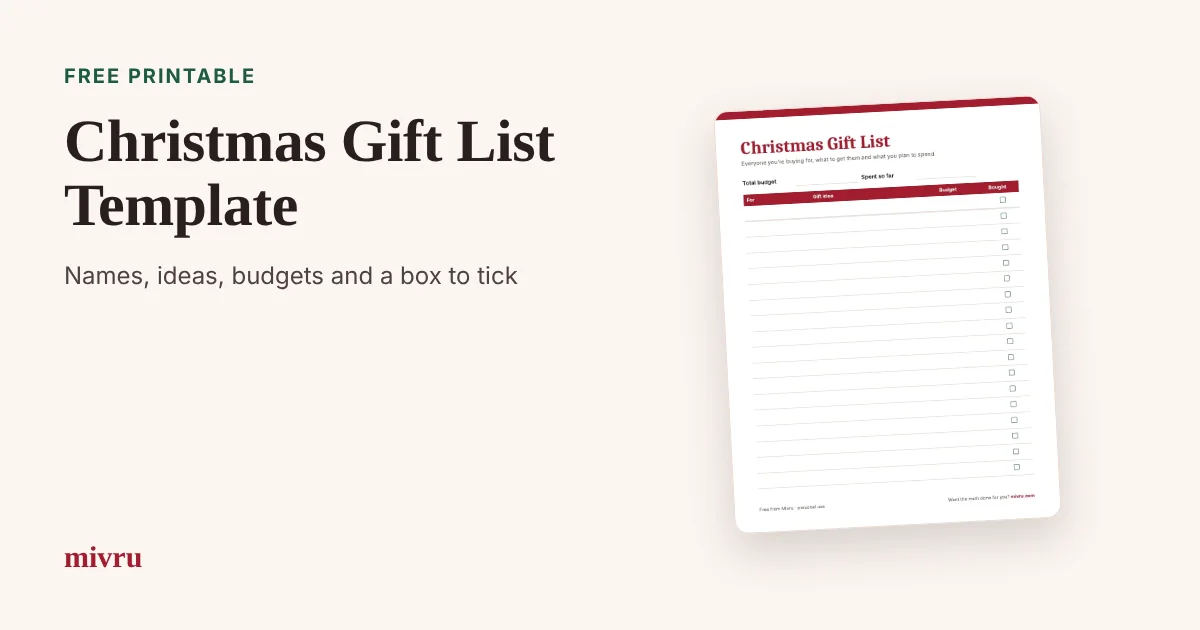
If you want a simple start, the free printable gift list is ready to print.
The three formulas in one table
| What you want | Formula idea | In plain words |
|---|---|---|
| Total for one category | SUMIF over the log | Add the amounts whose category matches |
| Total spent | SUM of the category totals | Add every category together |
| What is left | Budget minus spent | Subtract, and look for a negative number |
| Percent used | Spent divided by budget | Shows how close you are to the limit |
The same four ideas work in Google Sheets and Excel. If you can read this table, you can fix the sheet when something looks wrong.
Check the sheet before you trust it
- Add one test purchase. Type a made-up amount in the log and check that the right category total moves.
- Delete the test row. Check that the totals go back.
- Spell a category two ways on purpose. See what happens, so you know why the drop-down matters.
- Compare the total with your card statement after a week of spending.
Where a spreadsheet beats a notes app
A notes app can hold a list of gifts. A spreadsheet adds up the list, compares it with a limit and shows what is left. That is the difference that keeps a budget honest when you are shopping in a hurry on a busy weekend.
Summary
You need three formulas: SUM for totals, SUMIF for category totals from your log, and simple subtraction for what is left. Add an "Over budget" warning, keep every purchase in one log and your spreadsheet will answer the only question that matters in December: how much do I have left?
Frequently asked questions
How do I make a Christmas budget spreadsheet?
Make one sheet for categories and one for gifts. Give each category a budget and an amount spent, then use SUM for totals and a subtraction formula for what is left.
Which formula adds up Christmas spending by category?
SUMIF. For example, =SUMIF(A:A,"Gifts",B:B) adds every amount in column B where column A says Gifts.
Is the Google Sheets formula different from Excel?
For the formulas in this guide, no. SUM, SUMIF and simple subtraction work the same way in Google Sheets and Excel.
Can I get a ready-made Christmas budget spreadsheet?
Yes. Our Christmas Budget & Gift Tracker has the budget, gift list, price compare and savings plan already built, with formulas that update on their own.