Couple Budget Template in Google Sheets: Share One File
Set up a couple budget template in Google Sheets: one shared file, categories you agree on, a spending log you both update and a weekly check-in.

A couple budget template in Google Sheets works best as one shared file. Both of you can add purchases from your phones, both of you see the same totals, and you stop asking each other where the money went. Setting it up takes about 30 minutes, and a ten-minute weekly check-in keeps it honest.
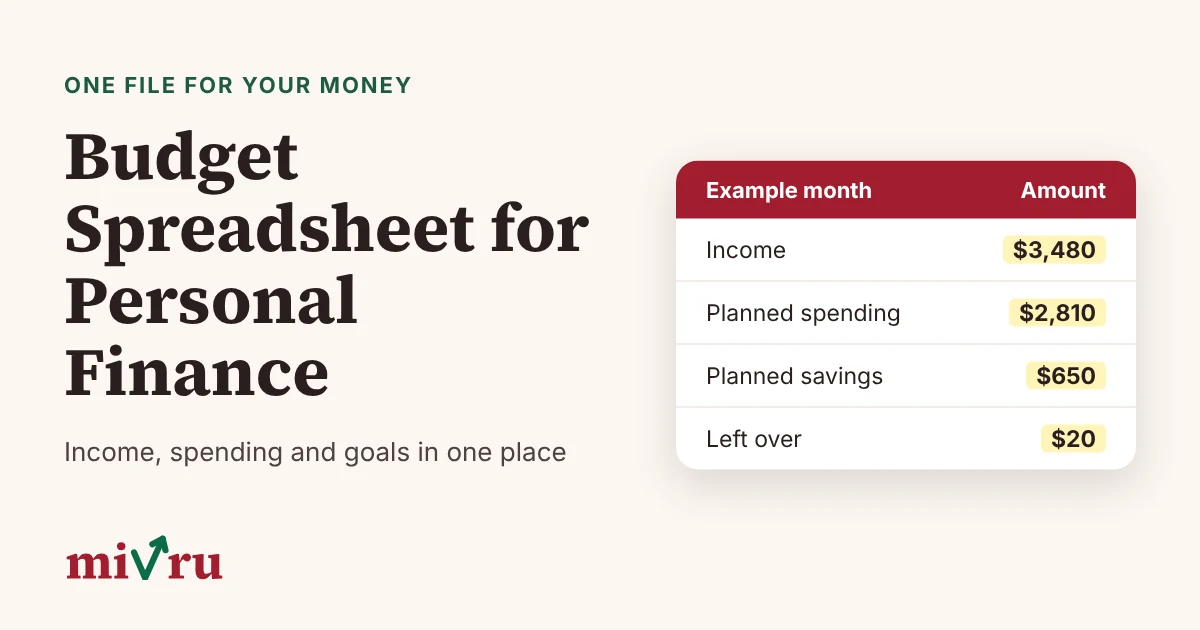
This guide sets up a shared household budget step by step. The numbers come from a made-up household with $3,480 of income and a $2,810 plan, the same one used in our simple budget spreadsheet example.
Step 1: Agree on the plan before you open the sheet
The spreadsheet is the easy part. The hard part is agreeing on what to track. Sit down together for 20 minutes and decide:
- The income to plan on. Use both pay amounts, and plan on the lower month if either varies.
- The shared categories. Housing, groceries, utilities, transport and insurance are usually shared. Fun money can stay personal.
- How shared bills are paid. Split in half, split by income or one person pays and the other covers something else.
- A savings amount. Choose a number you both can keep up.
Example: The household plans $2,810 of spending and $650 a month of savings. That leaves $20, so every dollar has a job.
Step 2: Make the file and share it
Create or upload the budget in Google Drive. If you start from an Excel file, upload the .xlsx and open it with Google Sheets. Then select the file, choose Share, type your partner's email and pick a role. Google's guide to sharing files from Google Drive explains the choices.
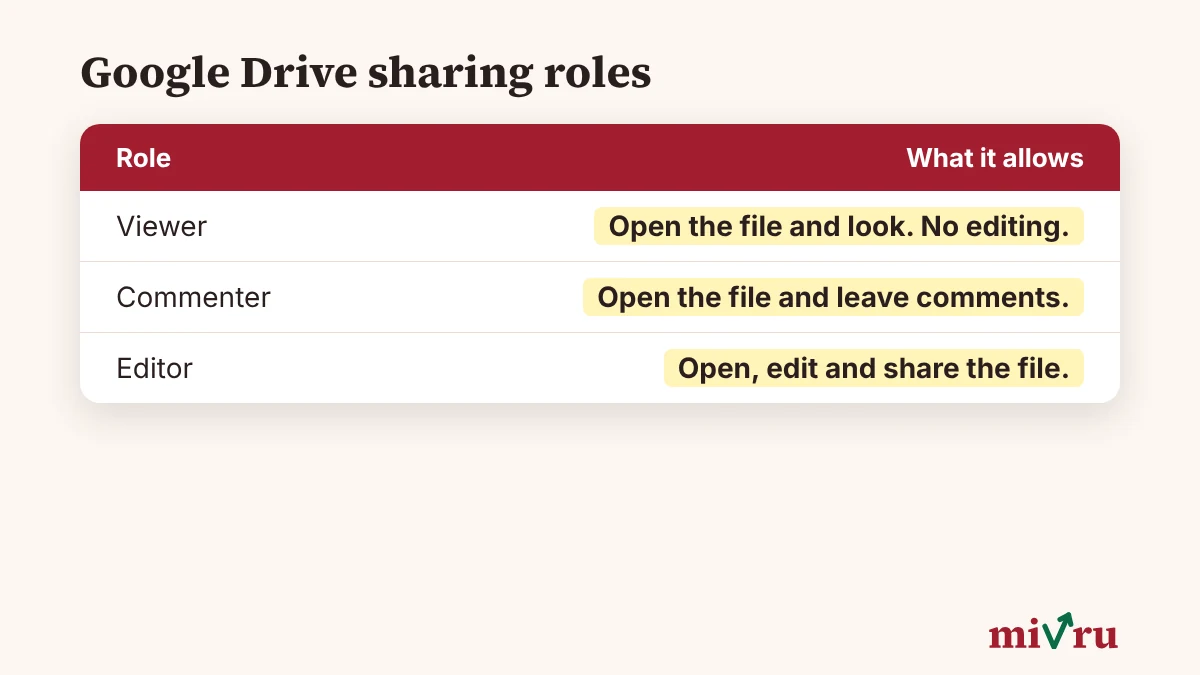
For a shared budget, both of you should be editors, so each can add and change rows. A viewer can only look, and a commenter can only leave comments.
Step 3: Set up the sheets
You need a spending log, a list of categories with budgets, and a summary. In the log, use columns for date, category, what for, who paid and amount. Use the same category names everywhere.
Drop-downs stop typos. Select the category column, choose Data > Data validation and set a list. Google's page on how to create dropdown lists walks through it. For who paid, make a short list such as Alex card, Sam card, Joint account and Cash.
Step 4: Add up the month
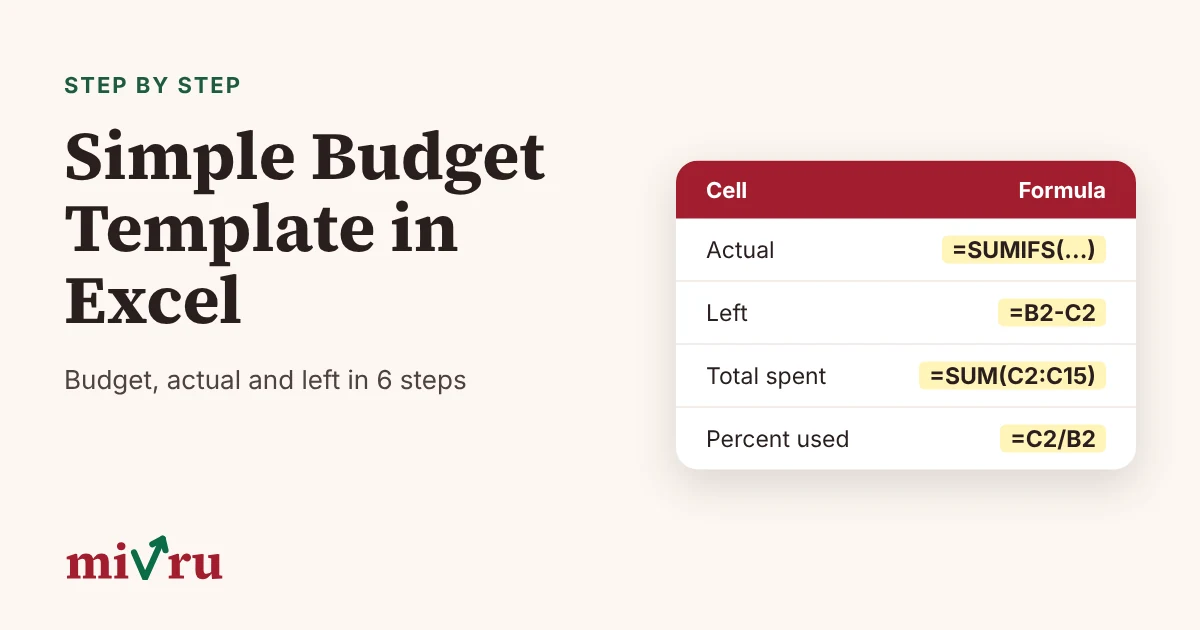
On the summary, use SUMIFS to total each category for a month. Google explains the arguments on its SUMIFS function page, and the same formula pattern works as in Excel:
=SUMIFS(Log!$E:$E,Log!$B:$B,$A2,Log!$A:$A,">="&$G$1,Log!$A:$A,"<"&EDATE($G$1,1))
Here G1 holds the first day of the month you are viewing. Google describes EDATE on its help site.
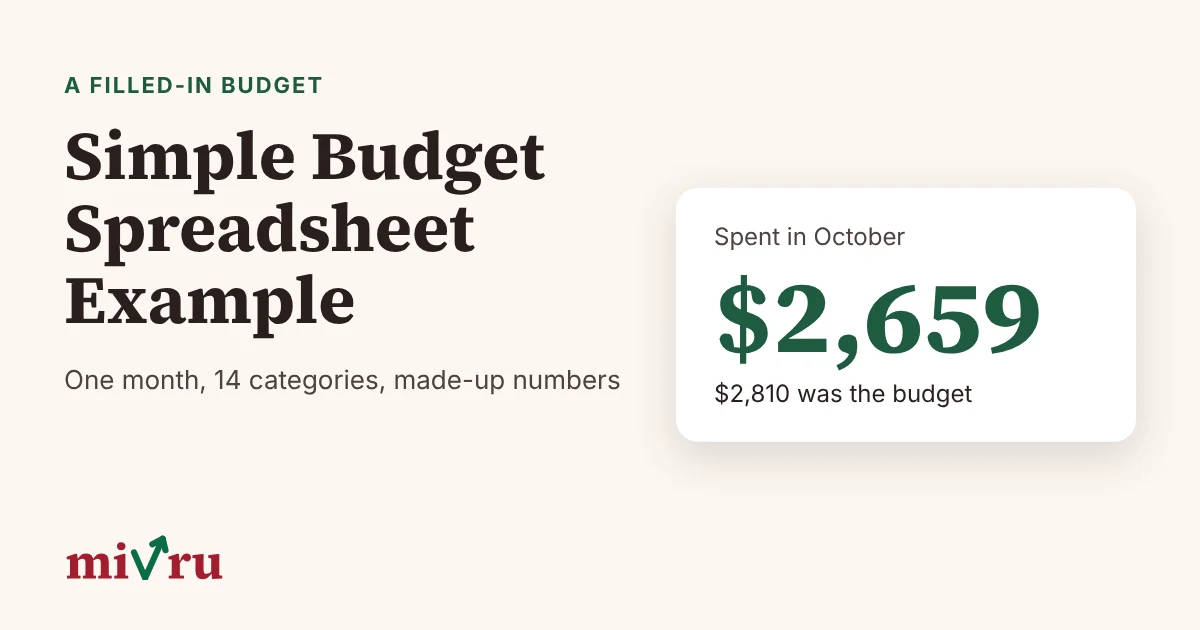
Example: For October the household's spending adds up to $2,658.92, which is $151.08 under the plan. Groceries are $410.23 against $440.
Step 5: Add who paid
A column for who paid lets you answer the question that causes most arguments: did each person cover their share? Add a small table that totals each payer with SUMIFS on the account column. The goal is not to win. It is to see the same picture.
Step 6: Hold a weekly check-in
Pick a time each week, such as Sunday evening, and spend ten minutes together:
- Add anything that is missing from the log.
- Look at each category's actual against its plan.
- Decide on any change for the coming week.
- Move the savings amount if you have not yet.
Keep it short and keep it kind. The point is to catch a small overrun in week two, not to discuss it in week four.
Tips for a shared budget
- Keep a personal fun line each. A small amount each of you can spend without asking avoids a lot of friction.
- Give each of you a way to add rows from your phone. If it is hard, it will not happen.
- Rename the accounts to match your life, so everyone knows what Joint or Cash means.
- Review the plan every few months. Pay, rent and prices change.
For the thinking behind the plan, read our budget spreadsheet for personal finance guide. For the bills side, see the bill tracker in Google Sheets, and to track goals together the savings tracker in Google Sheets. This is general information, not financial advice.
How to split shared bills: three common rules
There is no single fair rule. Pick one you both agree on, write it at the top of the sheet and review it when pay changes. Here is a made-up example: shared bills of $1,800 a month, where one partner earns $2,088 and the other $1,392 (60% and 40% of $3,480).
| Rule | Partner A pays | Partner B pays | When it fits |
|---|---|---|---|
| Split in half | $900 | $900 | Incomes are similar |
| Split by income | $1,080 | $720 | Incomes differ a lot |
| Each covers certain bills | Depends on the bills | Depends on the bills | You like simple, separate payments |
Example: With the income rule, each person puts the same share of their pay into shared costs: 60% of $1,800 is $1,080 and 40% is $720. This pay split is a separate made-up example from the $3,480 budget above.
What to keep shared and what to keep personal
- Shared: housing, utilities, groceries, insurance, transport you both use, savings goals you chose together.
- Personal: a fun-money line for each person, gifts for the other partner and hobby spending.
- Decide together: large purchases. Agree on an amount above which you talk first.
Making the weekly check-in work
A shared sheet only helps if you both look at it. Keep the check-in short and the tone kind. Start with what went well, then look at the one or two categories that are over, and end by agreeing on one change. If a check-in turns into an argument, stop and come back to it the next day.
Want it ready-made?
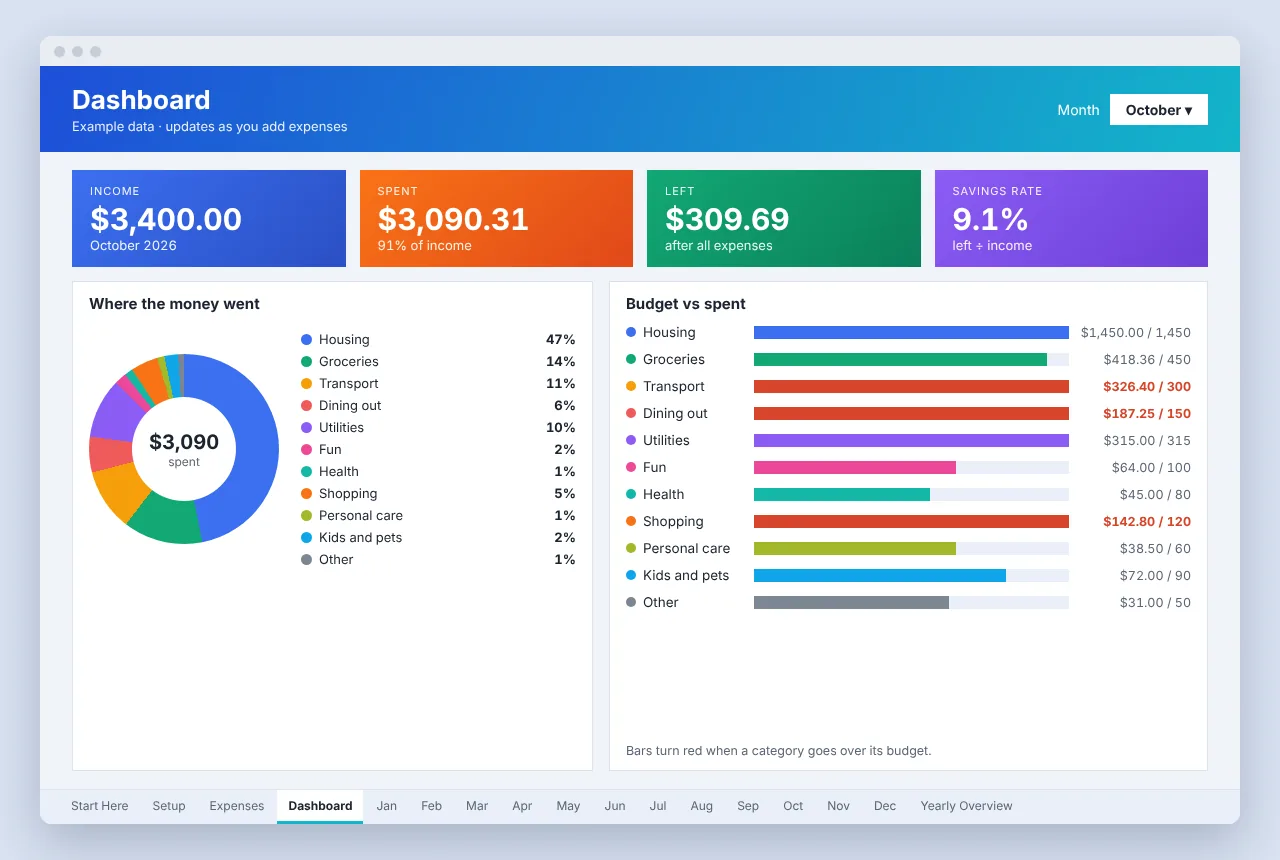
The Mivru All-in-One Budget Planner is a file you can upload to Google Drive and share. It has the budget for 14 categories you can rename, spending, income and savings logs with an account list, a dashboard with a month picker, budget vs actual and savings goals, in five color themes. It works in Excel and Google Sheets, and it comes with a 13-page printable. See the All-in-One Budget Planner.
Frequently asked questions
How do two people share a budget in Google Sheets?
Put the file in Google Drive, select Share, enter your partner's email and give them the Editor role. Both of you can then add rows and see the same totals.
What is the difference between Viewer, Commenter and Editor?
A viewer can look but not change. A commenter can leave comments. An editor can edit the file and share it. For a shared budget, both partners should usually be editors.
How do we split expenses fairly in one spreadsheet?
Agree on a rule first, such as splitting shared bills in half or in proportion to income. Then record who paid and use the sheet to see how the totals compare.
Does the budget update on both phones?
Yes. Google Sheets saves changes as you type, so the other person sees the new rows the next time they open the file.
Can I use an Excel budget in Google Sheets?
Yes. Upload the .xlsx file to Google Drive and open it with Google Sheets. The formulas and drop-downs work in both.